


Du studierst an der FOM?
Die nächste Hausarbeit steht an?
Du hast keinen Bock, wieder eine Nacht damit zu verbringen, die Fußnoten und das Literaturverzeichnis manuell zu schreiben und nachzuprüfen, oder gar Punkte abgezogen zu bekommen?
Welcome to my blog post about the art of literature research and citation with Zotero! In this article, I'll show you how to write your academic papers efficiently by using the great tool called Zotero is used. It is the ultimate solution for organising your research sources and citing your sources correctly and effortlessly.
Why Zotero?
Bevor ich mich in die Details stürze, lasst uns einen Blick darauf werfen, warum Zotero ein unschätzbares Werkzeug für euer Studium an der FOM ist. Zotero ist eine kostenlose Open-Source-Software, die speziell für researchers and students . Not only does it enable you to organise to sources, but also enable you to cite correctly and create bibliographies at ease. Completely automatic.
Du fügst deine Quellen in Zotero ein (am Computer, am Tablet oder am Handy) und zitierst sie, während du schreibst. Am Ende fügst du eine Bibliographie ein, mit einem Klick, und bist bereit für die Abgabe.
Schritt-für-Schritt Anleitung für Zotero an der FOM
Step 1: Installing Zotero
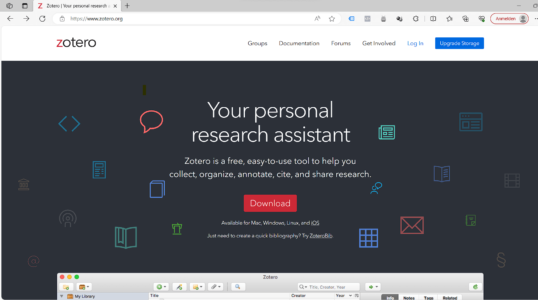
To use Zotero, you must first download and installZotero. Visit the official Zoterowebsite, download the application and install it on your computer. Zotero is available for Windows, Mac and Linux alike.
Step 2: Set up your account
After the installation create a Zotero- account . This allows you to share your literature data between your different devices like with a tablet or mobile but also safely store your library. Please do not skip this step.
Zotero offers a browser extension for Chrome, Firefox and Safari. Download this extension to import your sources directly from the internet to your library.
Step 3: The Zotero browser extension
Zotero automatically detects literature metadataas you surf the Internet. Do you need an article from JSTOR or a preprint from arXiv.org? A news item from the Süddeutsche Zeitung or a book from the National Library? Zotero is your companion, everywhere.
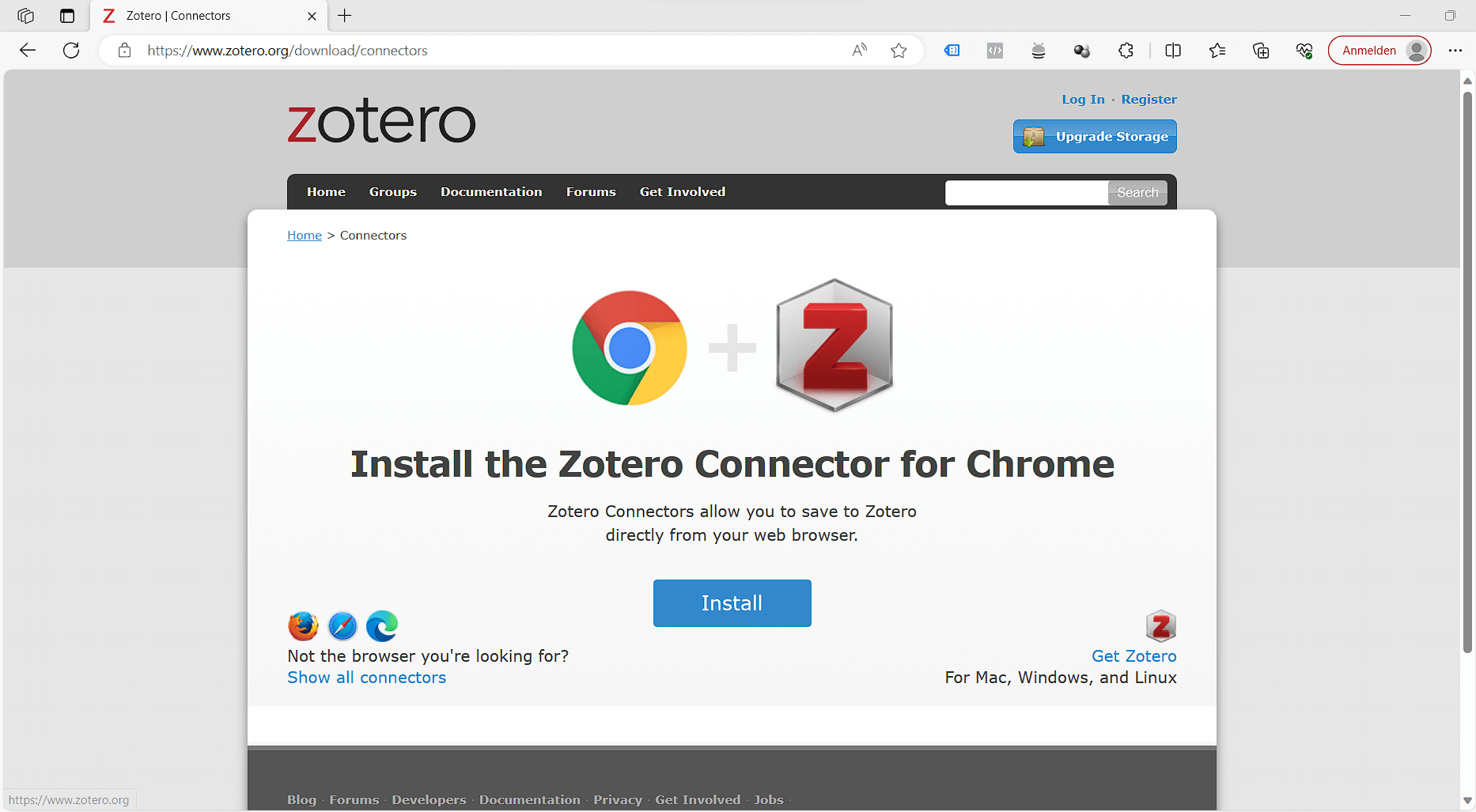
Simply open the following page and download the Zotero Connector for your browser: https://www.zotero.org/download/connectors
Step 4: Add your literature sources
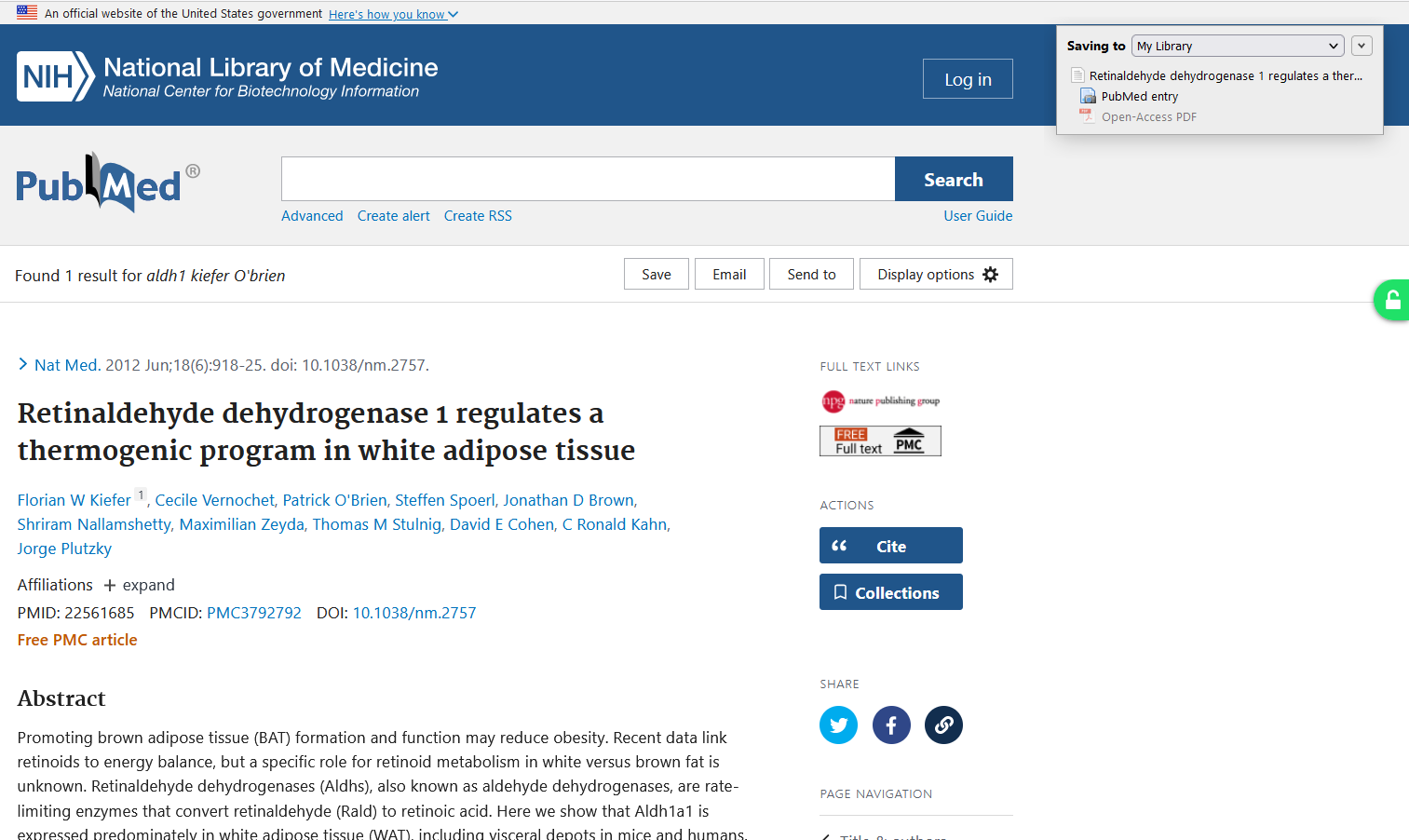
Once you have installed the extension, you can easily import literature sources from websites, online libraries and catalogues. Your sources are automatically organised in your Zotero- library. See in the below picture in the top right corner, Zotero automatically detects the item type and you can select the collection in which you want to save the item.
To make this even easier for you, I’m providing the following public library that will guide you on, wie man die Metadaten genau eingibt, um die korrekte Darstellung in Fußnote und Bibliographie zu erhalten: https://www.zotero.org/groups/2583327/fom_zitierbeispiele/library
Step 5: Install Word Processor Integration
Zotero creates citations im Text oder der Fußnoten und Bibliografien für jeden Texteditor, direkt in Word, LibreOffice oder Google Docs. Diese Integration wird bereits mit der Installation von Zotero automatisch für euch installiert, egal ob ihr Word oder ein anderes unterstütztes Programm benutzt. Ihr findet dann in Word einen neuen tab called Zotero in the menu.
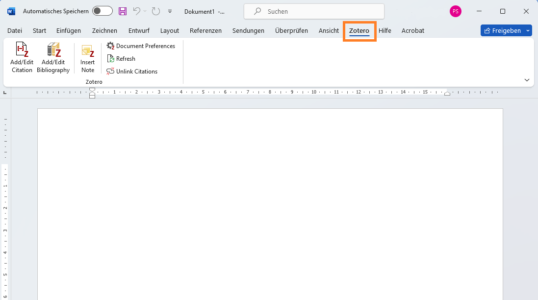
Sollte diese Leiste nicht auftauchen, könnt ihr entweder die Erweiterung nochmals installieren. Hierzu einfach in Zotero in den Einstellungen unter „Zitieren“ runterscrollen und unter „Textverarbeitungsprogramme“ könnt ihr auf „Microsoft Word Add-on nochmals installieren“ klicken. Siehe hierzu auch: https://www.zotero.org/support/word_processor_plugin_installation
Step 6: Installing the right citation style
Mit der Unterstützung von über 10.000 Zitationsstilen könnt ihr eure Arbeit so formatieren, dass sie zu jedem Stilhandbuch oder jeder Veröffentlichung passt. Für die FOM I also offer custom citation styles. Over the years I've put a lot of put a lot of effort into perfectly matching them with the respective guidelines.
Für die FOM habe ich spezielle Zitierstile entwickelt, die perfekt zu den Anforderungen eurer Universität passen:
- Zitierstil für die FOM (allgemein)
- Zitierstil für die FOM – ING & IT Management
- Zitierstil für die FOM – Juristik
- Zitierstil für die FOM – Wirtschaftspsychologie
- Zitierstil für die FOM – Wirtschaftspsychologie nach Schiefer
Nachdem ihr den Stil gekauft habt, könnt ihr ihn mittels Doppelklick installieren oder über das Menü hinzufügen.
Step 7: Create citations
You can then start working on your document right away!
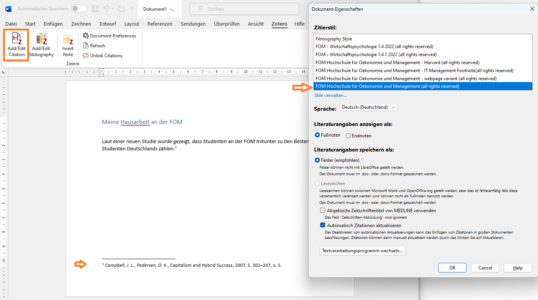
Einfach auf „Add/Edit Citation“ klicken und ihr werdet gefragt, welchen Stil ihr auswählen wollt. Danach wählt ihr eure Quelle aus und schon wird eure Fußnote bzw. euer Zitat generiert.
Die Bibliographie könnt ihr dann zum Schluss einfügen. Hierzu einfach auf den „Add/Edit Bibliography“-Knopf klicken. So einfach ist das.
Summary
The combination of Zotero and speziell für die FOM angepassten Zitierstilen will significantly improve your academic life. Literature research and citing will become a stress-free process so that you can concentrate on the essentials - your research and your work.
Nutzt diese Ressourcen weise und lasst euch von Zotero und meinen maßgeschneiderten Zitierstilen dabei unterstützen, deine akademische Arbeiten zu verfassen.
Viel Erfolg bei deinem Studium an der FOM und mit deiner wissenschaftlichen Arbeit! Bei Fragen, einfach melden.