


The reference manager Zotero offers a variety of citation styles, but sometimes you need a special style that you have to install manually. This may be the case if you receive a customised citation style from a publisher or bought a style in my shop . In the following guide you can find out how to install a .csl file in Zotero and apply it to your document.
Step-by-step instructions for installing a .csl citation style in Zotero
Option 1: Install by double-clicking
The simplest method is to open the .csl file directly:
- Download the .csl file to your computer.
- Open Zotero
- Double-click on the file
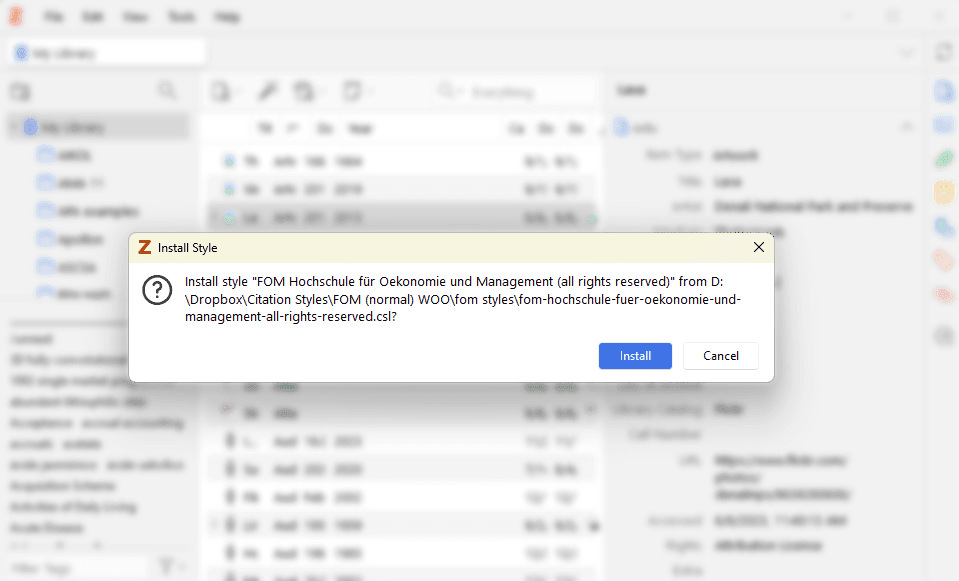
- Zotero should start automatically and install the style.
- A confirmation appears that the citation style has been added.
Option 2: Right-click & ‘Open with...’
If Zotero does not recognise the file when you double-click it, you can open it explicitly with Zotero:
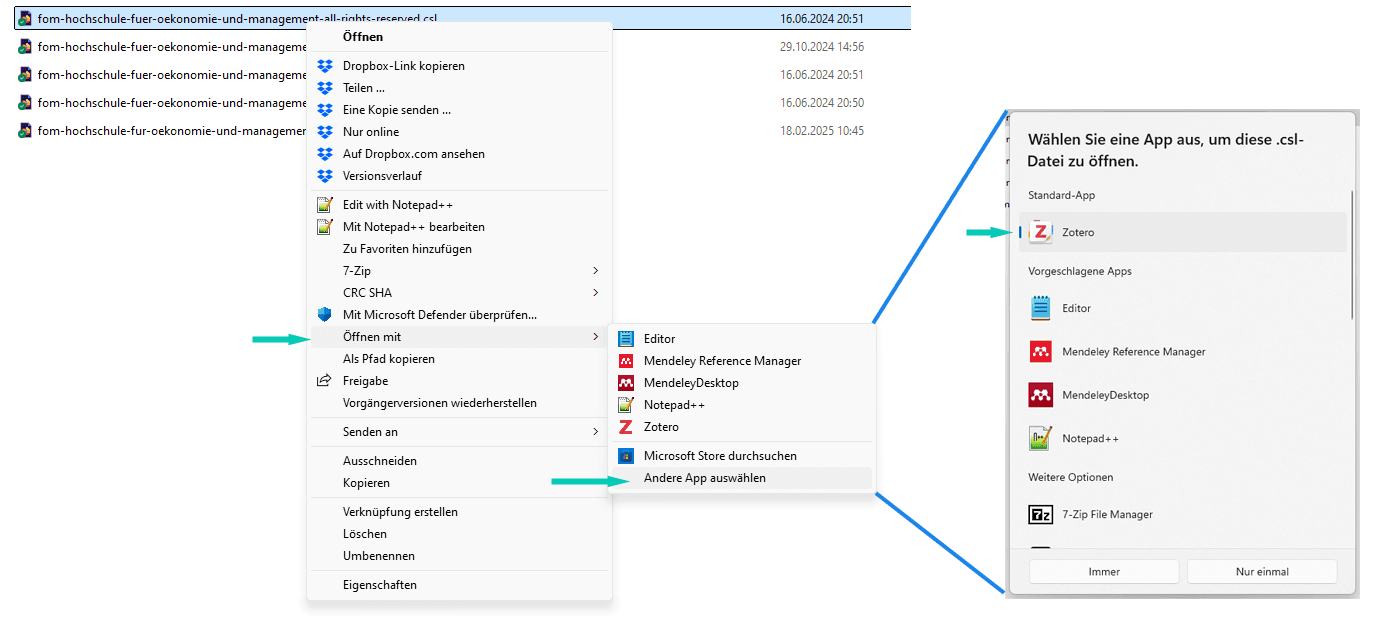
- Navigate to the downloaded .csl file
- Click on the file with the right mouse button
- Select ‘Open with...’ and then select
- ‘Zotero’ either directly there
- or go to ‘Select another app’ and select Zotero there
- Zotero should now import the file and display the dialogue shown above
Option 3: Manual installation in Zotero
If the first two methods do not work, you can import the style manually into Zotero:
- Open Zotero
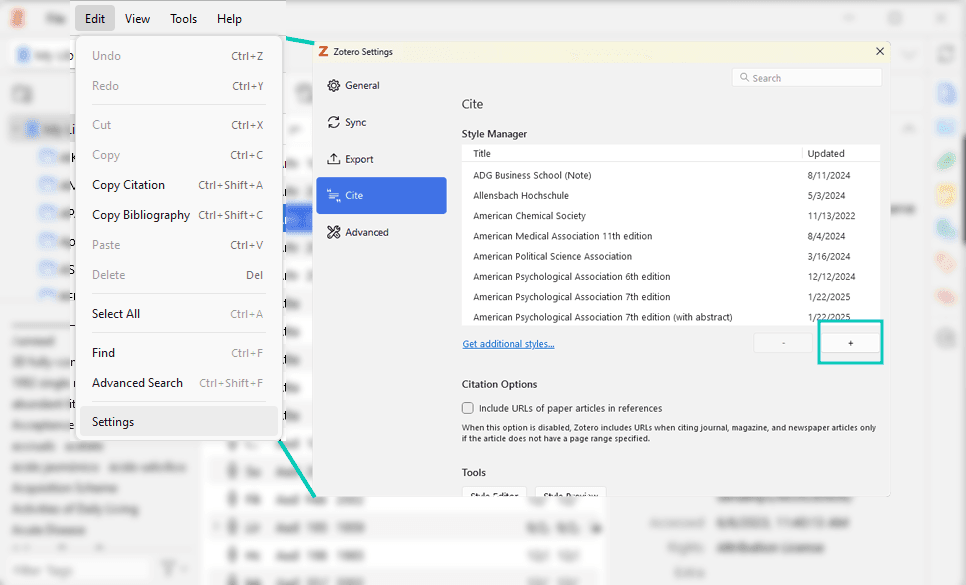
- Go to Edit (Windows) bzw. Zotero (Mac) > Settings/Einstellungen.
- Switch to the Cite tab and select Styles.
- Click on the +-symbol at the bottom left.
- Select the saved .csl file and confirm the import
- The style is now displayed in the list and can be used
Using the new citation style
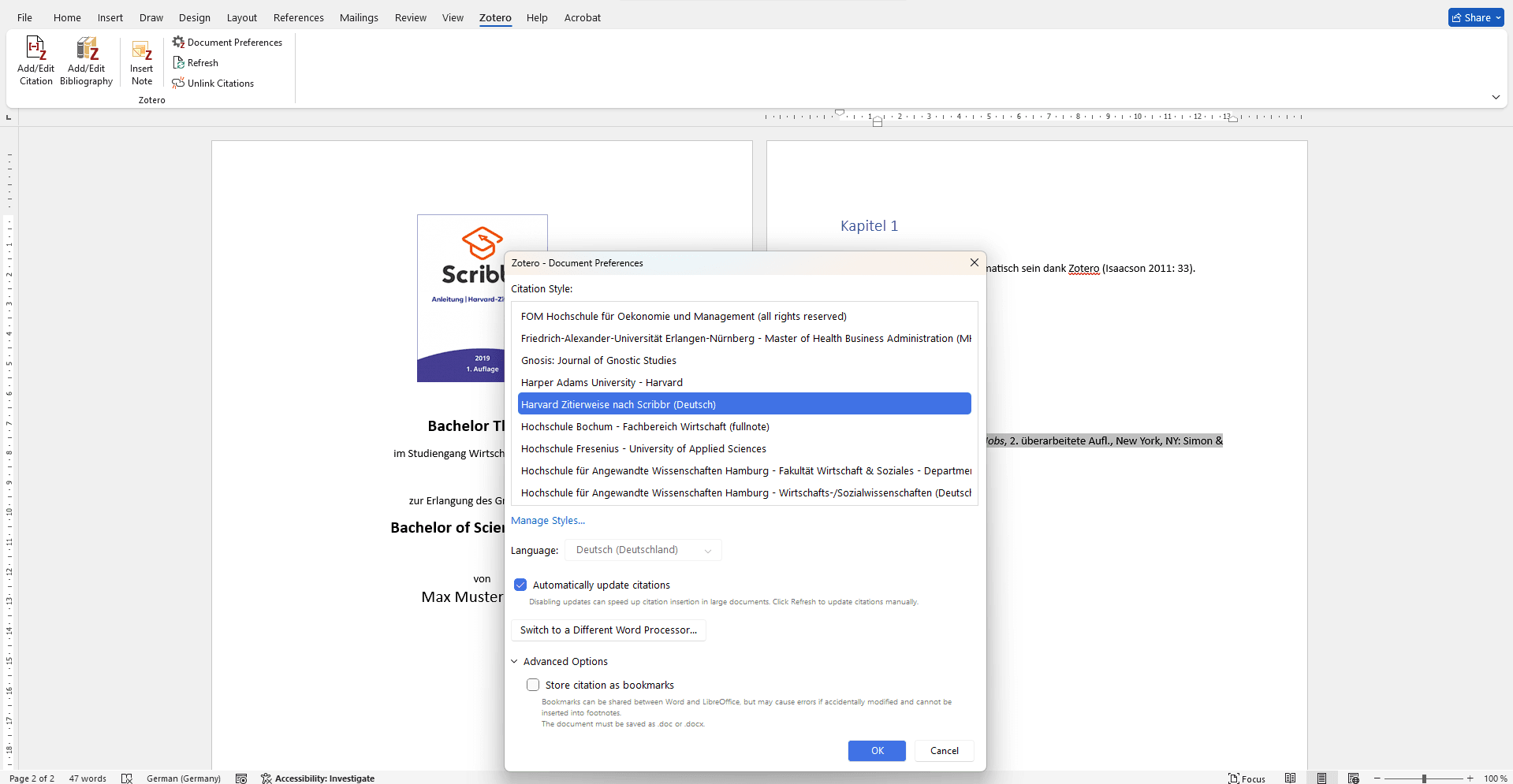
The citation style should now be installed. To apply it to your document, you need to do this directly in your Word file. To do this, simply go to the Zotero tab in Word and select the style under Document preferences/Document settings.
Summary
Installing a custom .csl citation style in Zotero is easy if you know the right steps. If one method doesn't work, there are alternative ways to import the style. If you have any problems with the installation, you can always contact me at contact me!