
No products in the basket.

Using Zotero with Obsidian: Step-by-step guide (including plugins)
Optimise your academic work! Learn how to connect Zotero to Obsidian, set up the plugin, and import your first note.

Zotero is indispensable software for literature management, but sometimes you come across special requirements that cannot be solved directly via the user interface. A common problem is the need to change a field in many entries - for example, to:
Manual changes are tedious and time-consuming. Fortunately, there is an elegant solution: Zotero Search & Replace Script. In this blog post I will show you how to use this script to change all entries in your Zotero database at once.
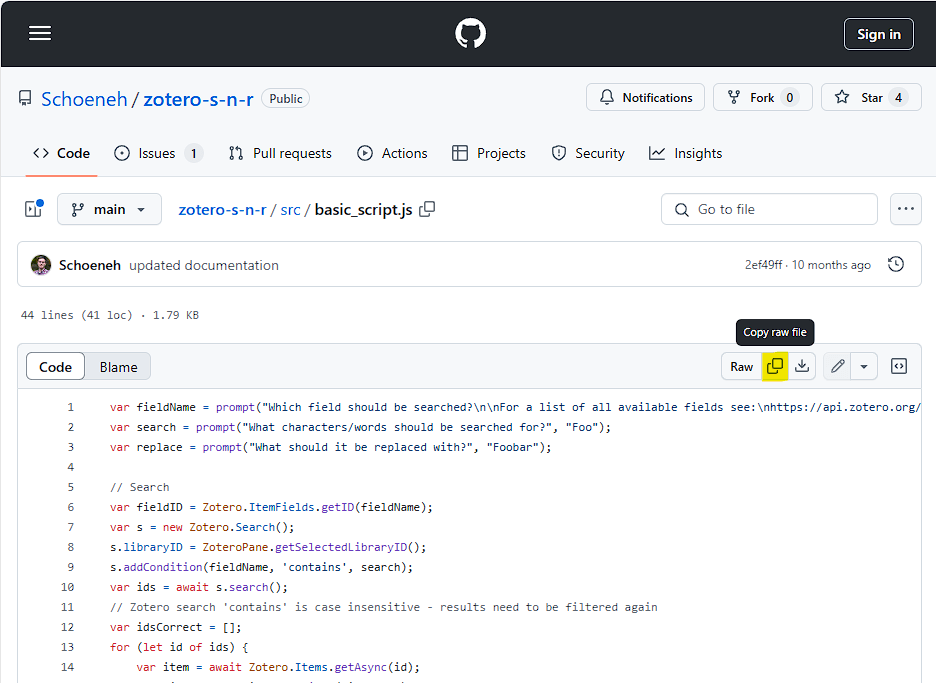
First you need the Zotero Search & Replace script developed by GitHub user Schoeneh. This script allows you to quickly and easily perform search and replace operations in your entire Zotero database.
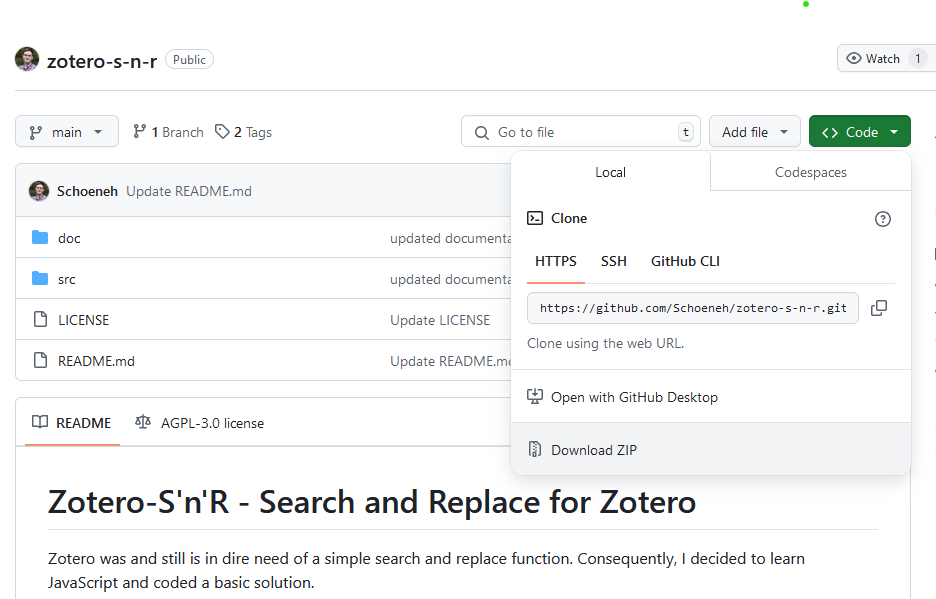
You have 2 options for this:
For option 1:
For option 2:
The script is now in your clipboard and you can continue with step 2.
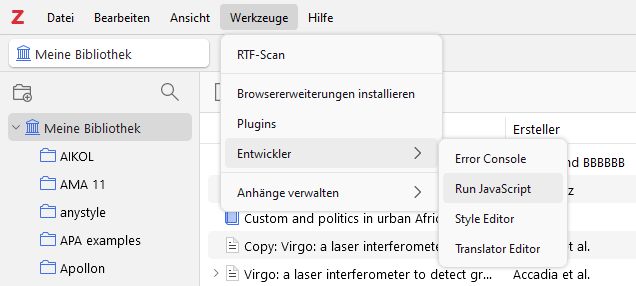
Open the JavaScript console again and load the script by copying the entire code into the console and executing it.
To do this, go to ‘Tools’ >> ‘Developer’ in Zotero and select ’Run JavaScript".
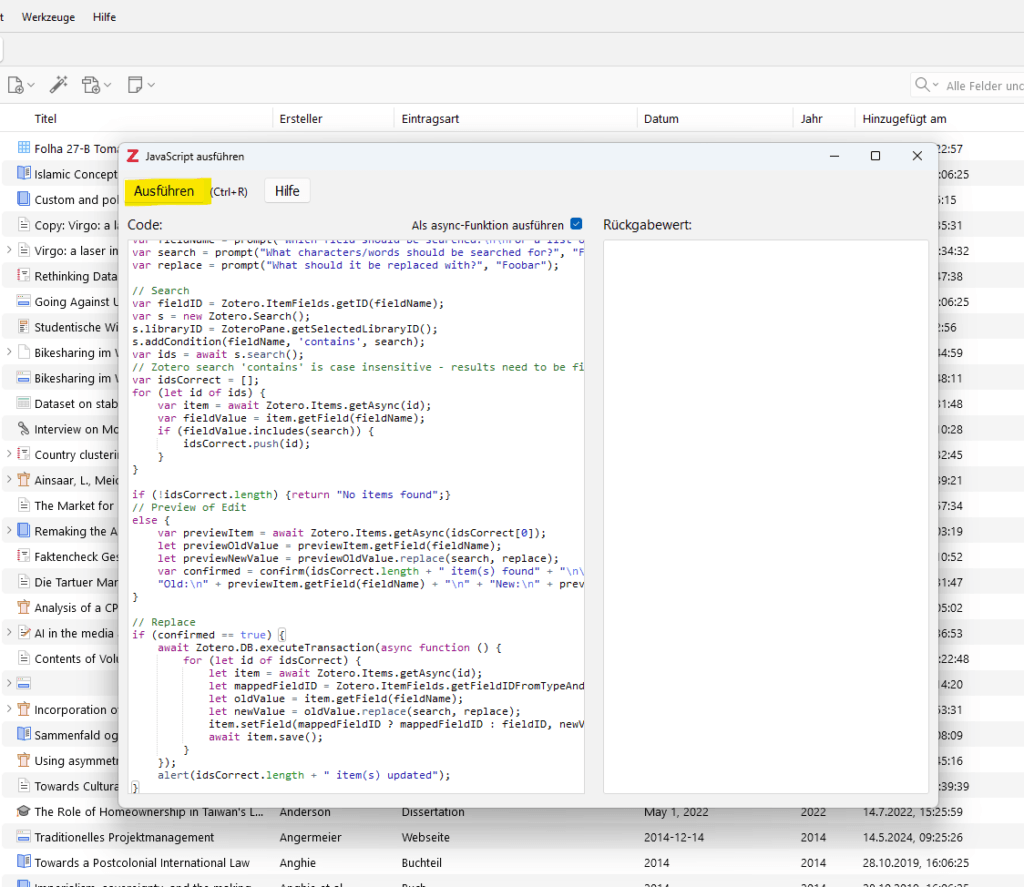
a) Select field
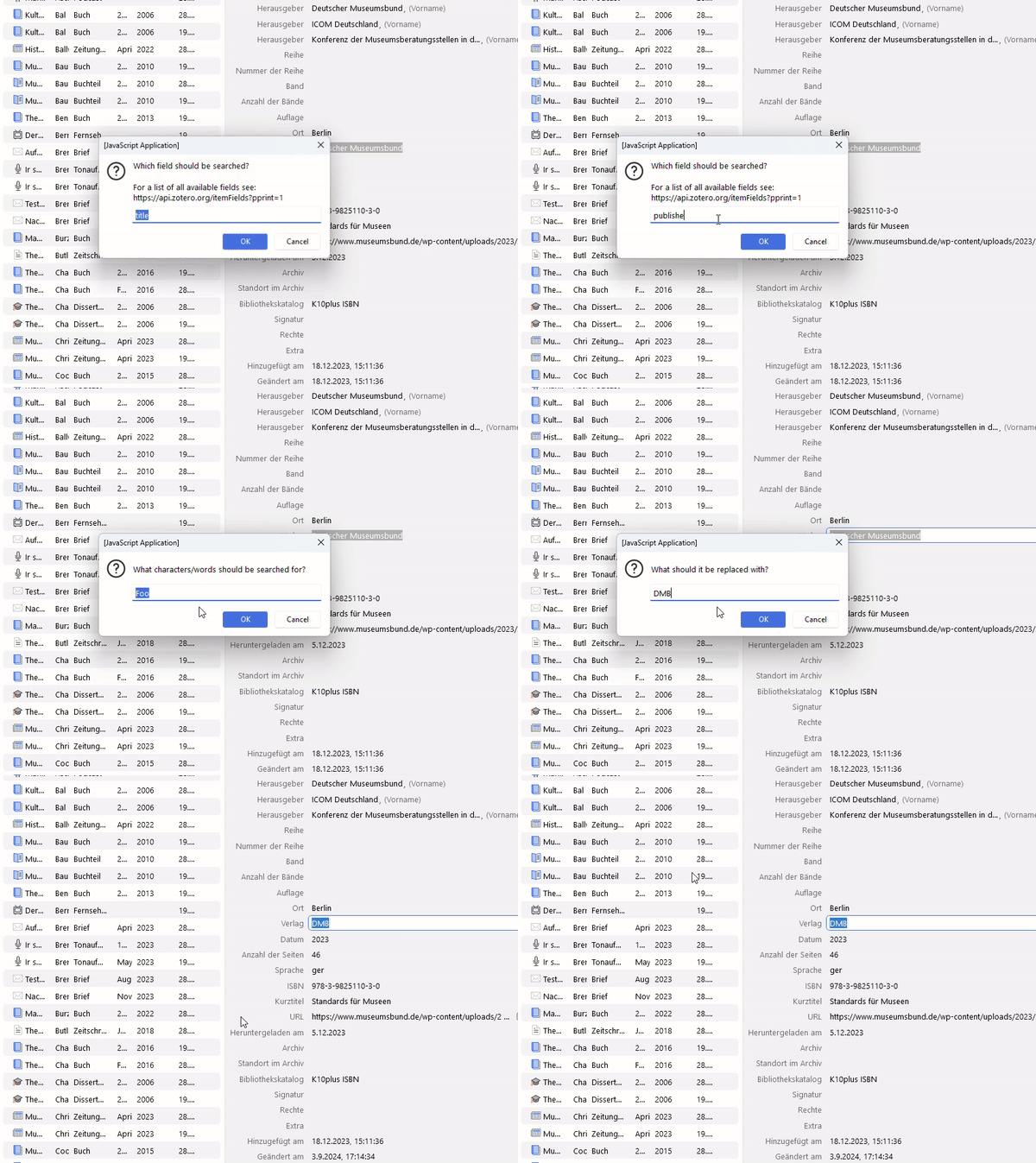
A new dialogue will open, allowing you to select which field of your entries you want to search and replace. You will also be referred to the following URL, which will give you a list of all Zotero fields which can be changed with this script.
Select the desired field, e.g. ‘publisher’ for the publisher field and click OK.
b) Enter the word to be searched for
In the next field, enter the word you want to replace. For example, if you want to change ‘Deutscher Museumsbund’ to ‘DMB’, you would now enter ‘National Institute of Health’ here. Click OK again.
c) Enter the word you want to replace with
Now enter ‘DMB’ in the next dialogue and confirm again with OK.
The next dialogue will now show you how many instances of the word/expression were found by the script and will be replaced as soon as you confirm.
As you can see in the following animation, ‘DMB’ is now also available as a publisher for this entry.
The Zotero Search & Replace script is a powerful tool that can save you a lot of time if you want to change publisher names or other metadata in your Zotero database en masse. It does require a certain amount of technical understanding to install and use, but the flexibility and efficiency you gain is more than worth the effort.The top Zotero extensions I can't live without‘I also look at the “Bulk Edit Script”, which is based on this script and includes several additional functions.’
Good luck organising and modifying your Zotero library!
Optimise your academic work! Learn how to connect Zotero to Obsidian, set up the plugin, and import your first note.

Zoplicate is a powerful Zotero plugin that efficiently recognises and merges duplicate entries. It offers advanced duplicate detection and saves time when managing large literature databases.

Many Zotero users ask themselves how they can change the style of footnote numbering - but this function is set directly in Microsoft Word. In this article, I'll show you how to customise the numbering of your footnotes in Word.

With the Zotero plugin ‘Better Authors’ you can display the last author/PI in your library. Find out how this function makes your scientific research for specific labs easier and provides a better overview.
We use cookies to enable you to navigate our website efficiently and to carry out certain functions. You can find detailed information on all cookies below, under the relevant consent categories.
Cookies classified as ‘necessary’ are stored in your browser, as they are essential for the website’s basic functions.
We also use third-party cookies to help us analyse your use of this website, save your settings and provide you with content and marketing materials that are relevant to you. These cookies are only stored in your browser with your prior consent.
You can enable or disable some or all of these cookies; however, disabling some of them may affect your browsing experience.
Necessary cookies are required to enable the basic features of this site, such as providing secure log-in or adjusting your consent preferences. They are not used for advertising or to track you across other sites. The consent cookie stores a random identifier that lets us keep a record of the choice you made.