
No products in the basket.
How to change the font of Zotero bibliographies in Word and LibreOffice
Learn how to set the font of Zotero bibliographies and footnotes in Word or LibreOffice. A compact guide for a professional document layout.
>> The following article is a guest article by Martina Klinkowski.
Zotero is great for managing your literature. However, if you want a better overview of your notes or want to work with highlights and comments, you will quickly reach the limits of Zotero. The solution: Import your Zotero notes into Obsidian. With the Zotero-Obsidian integration, you can seamlessly integrate your literature research into your note system. This works via a plugin that allows you to link Zotero and Obsidian. I'll explain how to do this in this article.
In principle, there are several plugins enable a Zotero-Obsidian link. I use the plugin ’Obsidian-Zotero-Integration".
With the plugin, you can import your Zotero entries into Obsidian and edit them there or use the notes. Both notes and annotations that you have made directly in PDF documents within Zotero can be imported. This means that you can make markups in an attached PDF, add comments or annotations to the markups and both will end up in Obsidian when you transfer them. Tags are also transferred.
The nice thing is that you not only transfer the notes, but they are also directly linked - if you click on the link in Obsidian, the PDF opens in Zotero at the respective note. So you can check everything again or read it in more detail.
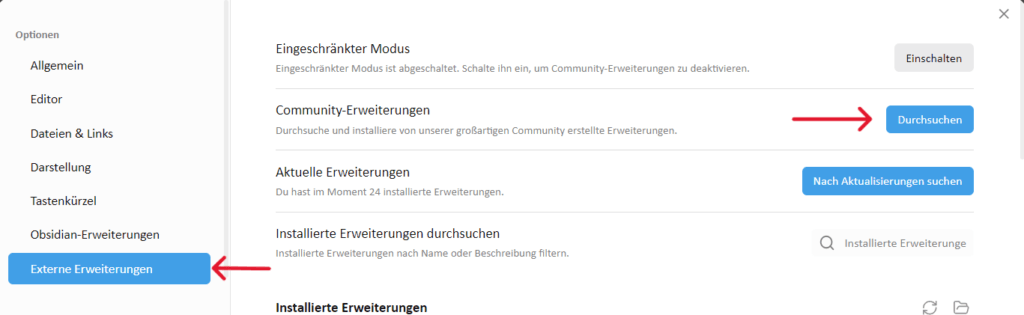
In the Obsidian settings under ‘External extensions’ you will find the option to search through all plugins. Here you can search for and install the Zotero Integration plugin.
The settings for this plugin are somewhat more extensive and you can configure a few things here.
That's why I'm describing the simple version here; you can always go into more detail later. Leave all options not mentioned in the default status.
You need a template file (you can find out how to create them here).
You have quite a few options here. I have my settings from various forum posts and have briefly listed them here so that you have a starting point:
Metadaten: this box contains data about your entry from Zotero, e.g. title and author, and you can assign your own tag. I use a separate tag for each writing project.
> [!note] Metadata
> type:: "{{itemType}}"
{%- for type, creators in creators | groupby("creatorType") %}
> {{type | replace("interviewee", "author") | replace("director", "author") | replace("presenter", "author") | replace("podcaster", "author") | replace("programmer", "author") | replace("cartographer", "author") | replace("inventor", "author") | replace("sponsor", "author") | replace("performer", "author") | replace("artist", "author")}}:: "{%- for creator in creators -%}{%- if creator.name %}{{creator.name}}{%- else %}{{creator.lastName}}, {{creator.firstName}}{%- endif %}{%- if not loop.last %}; {% endif %}{%- endfor %}"
{%- endfor %}
{%- if title %}
> title:: "{{title}}"
{%- endif %}
{%- if publicationTitle %}
> publication:: "{{publicationTitle}}"
{%- endif %}
{%- if date %}
> date:: {{date | format("YYYY-MM-DD")}}
{%- endif %}
{%- if archive %}
> archive:: "{{archive}}"
{%- endif %}
{%- if archiveLocation %}
> archive-location:: "{{archiveLocation}}"
{%- endif %}
> citekey:: {{citekey}}
> tags:: #hiervergibstdueinenTag
Info-Box: Contains direct links, as well as further information such as the abstract text and tags from Zotero, provided the fields there are filled.
> [!info]
> **Links**
> [online]({{uri}}) [local]({{desktopURI}}){%- for attachment in attachments | filterby("path", "endswith", ".pdf") %} [pdf](file://{{attachment.path | replace(" ", "%20")}}) {%- endfor %}
> **Cite Key:** [[@{{citekey}}]]
{%- for attachment in attachments | filterby("path", "endswith", ".pdf") %}
> **Link:** [{{attachment.title}}](file://{{attachment.path | replace(" ", "%20")}})
{%- endfor %}
{%- if abstractNote %}
> **Abstract:** {{abstractNote}}
{%- endif %}
{%- if bibliography %}
> **Bibliography:** {{bibliography}}
{%- endif %}
{%- if hashTags %}
> **Tags:** {{hashTags}}
{%- endif %}
Comments and notes: With this setting, both annotations in PDF documents and added notes from Zotero are adopted. Colour formatting is also used if you make a colour distinction for the highlights in Zotero.
## Annotations
{% macro heading(color) -%}
{%- if color == "#5fb236" -%}

💡 Main ideas, contributions and conclusions
{%- endif -%}
{%- if color == "#2ea8e5" -%}

❔ Questions
{%- endif -%}
{%- if color == "#ffd400" -%}

⭐ Important
{%- endif -%}
{%- if color == "#a28ae5" -%}

🧩 Definitions and concepts
{%- endif -%}
{%- if color == "#ff6666" -%}

⛔ Weaknesses and caveats
{%- endif -%}
{%- endmacro -%}
{% persist "annotations" %}
{% set annotations = annotations | filterby("date", "dateafter", lastImportDate) -%}
{% if annotations.length > 0 %}

*Imported on {{importDate | format("YYYY-MM-DD HH:mm")}}*
{% for color, annotations in annotations | groupby("color") -%}


### {{heading(color)}}
{%- for annotation in annotations -%}
{%- if annotation.imageRelativePath %}
![[{{annotation.imageRelativePath}}]]
{%- endif %}
{%- if annotation.comment %}

- **{{annotation.comment}}:**

- =={{annotation.annotatedText | nl2br}}== [(p. {{annotation.pageLabel}})](zotero://open-pdf/library/items/{{annotation.attachment.itemKey}}?page={{annotation.pageLabel}}&annotation={{annotation.id}}) {% if annotation.hashTags %}{{annotation.hashTags}}{% endif %}

{%- elif annotation.annotatedText %}

- =={{annotation.annotatedText | nl2br}}== [(p. {{annotation.pageLabel}})](zotero://open-pdf/library/items/{{annotation.attachment.itemKey}}?page={{annotation.pageLabel}}&annotation={{annotation.id}}) {% if annotation.hashTags %}{{annotation.hashTags}}{% endif %}

{%- endif -%}{%- endfor %}
{% endfor -%}
{% endif %}
{% endpersist %}

# Notes
{% if markdownNotes %}
{{markdownNotes}}
{{markdownNote.hashTags}}
{% endif %}

%%Ende %%In Obsidian, press Ctrl + P and then select Zotero Integration: Import … (here, select the name you have given to your import format). The Zotero window will open and you can search for the entry you wish to transfer (please note: this only works if you have Zotero open at the same time). A new note for the Zotero entry will be created automatically and opened straight away.
Convinced? Then why not try out the integration of Zotero and Obsidian for yourself! You'll be surprised how much time and effort you can save 'The top Zotero extensions I can't live without".

Martina Klinkowski
Her blog is all about digital note-taking, learning and personal knowledge management, especially with tools like Obsidian. In addition to practical tips on how to structure and use information efficiently, you will find detailed instructions on how to use Obsidian. If you're looking for digital solutions for your knowledge management, you've come to the right place.
Learn how to set the font of Zotero bibliographies and footnotes in Word or LibreOffice. A compact guide for a professional document layout.

Master literature research and citation at the FOM with Zotero! Easily organise your sources and automatically generate citations and bibliographies.
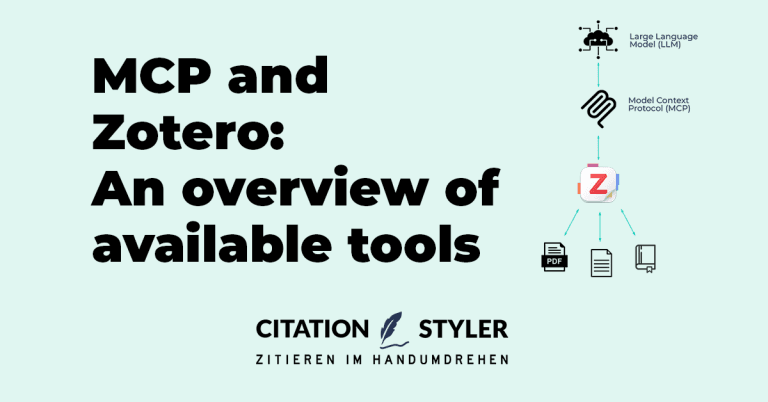
The Model Context Protocol (MCP) enables Zotero to be connected directly to AI assistants such as Claude or ChatGPT. There are now numerous projects that implement this, ranging from lightweight Python servers and Zotero plugins to hosted cloud services. We present all the latest Zotero MCP solutions and show which project suits which workflow.

Sometimes in Zotero, you need to add sources to your bibliography that have not been directly cited, such as the book containing a specific chapter. Here, I will show you how to do this easily.