Are you studying at FOM? Is your next assignment coming up? Don't fancy spending another night writing and checking footnotes and bibliography manually?
Welcome to my blog post about the art of literature research and citation with Zotero! In this article, I'll show you how to write your academic papers efficiently by using the great tool called Zotero . It is the ultimate solution for organising your research sources and citing your sources correctly and effortlessly.
YouTube
This content is blocked because YouTube cookies have not been accepted.
Why Zotero?
You add your sources to Zotero (on your computer, tablet or mobile phone) and cite them as you write. At the end, you insert a bibliography with a single click, and you’re ready to hand in your work.
Step-by-step instructions for using Zotero at FOM
Step 1: Installing Zotero
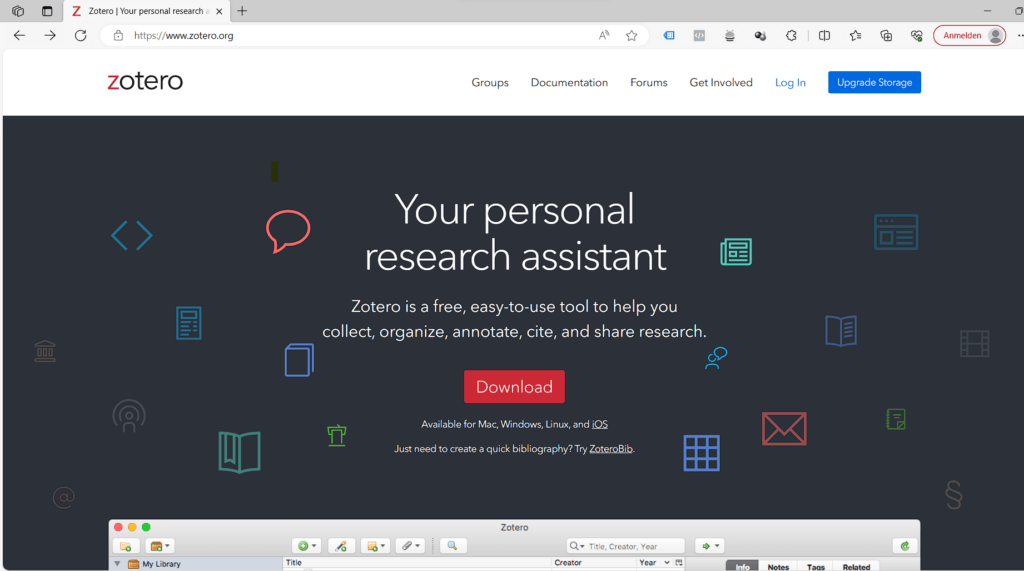
Um Zotero zu nutzen, musst du es zunächst download and installZotero. Visit the official Zoterowebsite, download the application and install it on your computer. Zotero is available for Windows, Mac and Linux alike.
Step 2: Setting up your account
After the installation create a Zotero–account . This allows you to share your literature data between your different devices like with a tablet or mobile but also safely store your library. Please do not skip this step!
Step 3: The Zotero browser extension
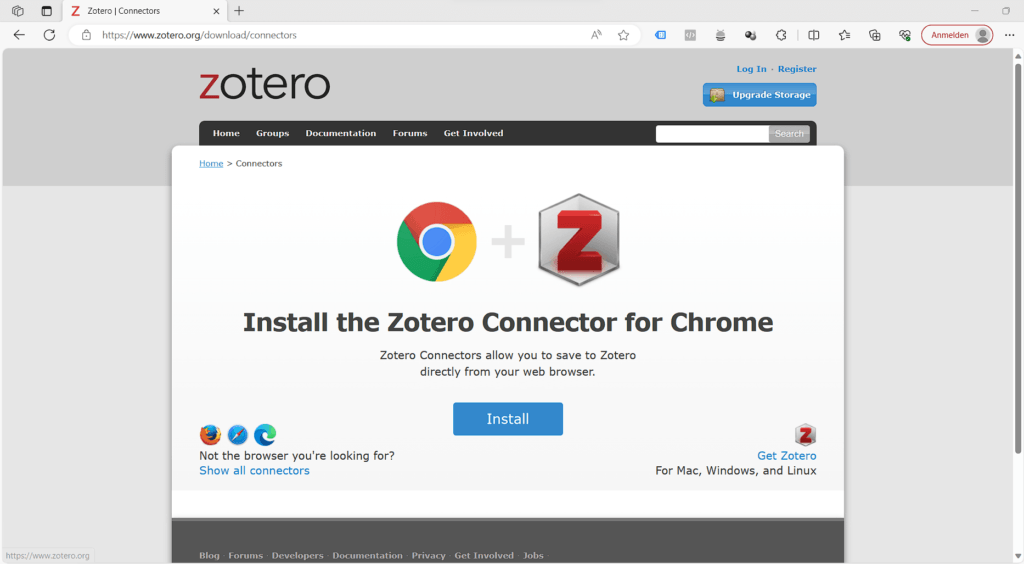
Zotero offers a browser extension for Chrome, Firefox and Safari. Download this extension to sources directly from the internet your your library.
Zotero automatically recognises the metadata, whilst you’re browsing the internet. Do you need an article from JSTOR or a preprint from arXiv.org? An article from the *Süddeutsche Zeitung* or a book from the National Library? Zotero is your constant companion, wherever you are.
Simply open the following page and click on "Install": Zotero Connector (available for all common browsers)
Step 4: Add your literature sources
Once you have installed the extension, you can easily import literature sources from websites, online libraries and catalogues. Your sources are automatically organised in your Zotero– library after import. See in the below picture in the top right corner, Zotero automatically detects the item type and you can select the collection in which you want to save the item.
To make this even easier for you, I’m making the following public library available that will guide you onhow to enter your metadata correctly, to have footnotes and bibliography render correctly. https://www.zotero.org/groups/2583327/fom_zitierbeispiele/library
Step 5: Install Word Processor Integration
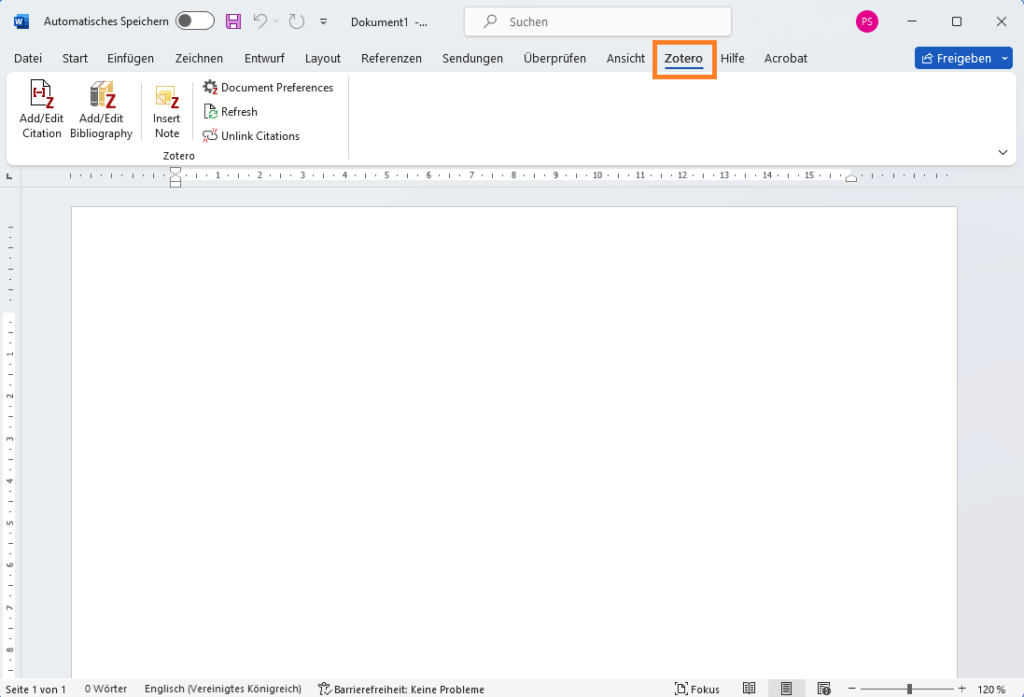
Zotero creates citations in your text or footnotes and bibliographies for any text editor, directly in Word, LibreOffice or Google Docs. This integration is automatically installed for you when you install Zotero, regardless of whether you use Word or another supported programme. You will find a new tab called Zotero in the menu.
If this tab does not appear, you can reinstall the extension. To do this, simply scroll down in Zotero's settings under "Citation" and under "Word processing programs" you can click on "Reinstall Microsoft Word Add-on". See also: https://www.zotero.org/support/word_processor_plugin_installation
Step 6: Installing the right citation style
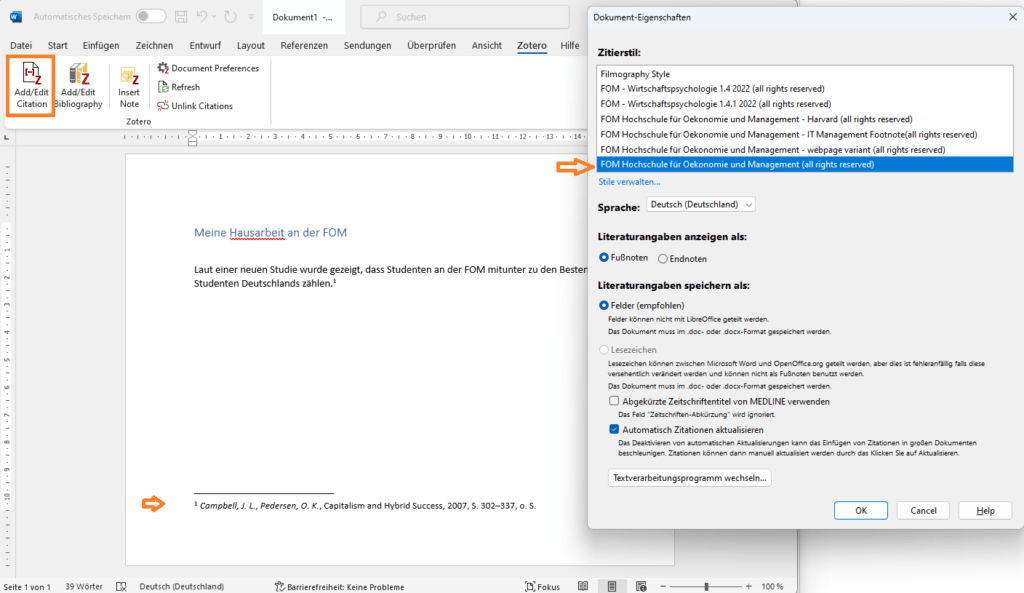
There are over 10,000 free citation styles available for Zotero, but none of them comply with the FOM guidelines. Styles such as Chicago or a general ‘German citation style’ look similar, but follow different rules. Example:
Chicago (Kurzbeleg): Campbell und Pedersen, „Capitalism and Hybrid Success“. FOM-Leitfaden: Campbell, J. L., Pedersen, O. K., Capitalism and Hybrid Success, 2007, S. 307–332.
First names written out in full, no year, no page number, and the short citation in brackets is missing from the reference list. You cannot configure these differences in Zotero; they are inherent in the style itself.
That is why I have developed my own styles for the FOM and have been maintaining them for years in line with the latest guidelines.
Once you have purchased the style, you will receive a licence to install the style(s) in Zotero. You can also use the following guide "Citation Styler Client Sync – Setup & Use" . You’ll receive updates automatically.
Step 7: Create citations
You can then start working on your document right away!
Simply click on "Add/edit Citation" and you will be asked which style you want to select. Then select your source and your footnote/citation will be generated.
You can then add the bibliography at the end. To do this, simply position the cursor and click on the ‘Add/Edit Bibliography’ button. It's as simple as that.
Summary
The combination of Zotero and my specially tailored-made FOM citation styles will significantly improve your academic life. Literature research and citing will become a stress-free process, so you can concentrate on what matters most – your research and your thesis/paper.
Use these resources wisely and let Zotero and my bespoke citation styles help you write your academic papers.
Good luck with your studies and your scientific work! If you have any questions don't hesitate to contact me.
Beaver is an AI research assistant that lives directly within Zotero as a side panel. You can search papers, get explanations of text passages and graphics, correct metadata, and organise your library automatically – all without leaving Zotero. A detailed look at its features, costs, and why native integration makes all the difference.
Many Zotero users ask themselves how they can change the style of footnote numbering - but this function is set directly in Microsoft Word. In this article, I'll show you how to customise the numbering of your footnotes in Word.
The Zotero fork Juris-M no longer synchronises and is considered abandoned. However, there are new developments: a new plugin is bringing jurisdictions, legal styles and parallel citations back to the current version of Zotero – still in alpha, but at an astonishing pace. What Juris-M users should know and do now.
The Theisen citation style is standard at many universities, but deviations in the guidelines often lead to uncertainties. Find out more about this topic in this blog.
We use cookies to improve your browsing experience, display personalised adverts or content, and analyse our website traffic. By clicking ‘Accept all’, you consent to the use of cookies. You can change or withdraw your consent at any time by clicking the settings icon.
Adjust settings
We use cookies to enable you to navigate our website efficiently and to carry out certain functions. You can find detailed information on all cookies below, under the relevant consent categories.
Cookies classified as ‘necessary’ are stored in your browser, as they are essential for the website’s basic functions.
We also use third-party cookies to help us analyse your use of this website, save your settings and provide you with content and marketing materials that are relevant to you. These cookies are only stored in your browser with your prior consent.
You can enable or disable some or all of these cookies; however, disabling some of them may affect your browsing experience.
Always Active
Necessary cookies are required to enable the basic features of this site, such as providing secure log-in or adjusting your consent preferences. They are not used for advertising or to track you across other sites. The consent cookie stores a random identifier that lets us keep a record of the choice you made.
Cookie
PHPSESSID
Duration
session
Description
PHP session cookie for managing user sessions.
Cookie
selectedTab
Duration
session
Description
Cookie
woocommerce_items_in_cart
Duration
session
Description
WooCommerce cookie to track items in cart.
Cookie
woocommerce_cart_hash
Duration
session
Description
WooCommerce cookie to determine cart contents changes.
Cookie
_GRECAPTCHA
Duration
6 months
Description
Used by Google reCAPTCHA to distinguish between humans and bots.
Cookie
fazcookie-consent
Duration
6 months
Description
Stores the visitor’s cookie consent choices and a random consent ID used to keep a record of this choice.
Always Active
Functional cookies help perform certain functionalities like sharing the content of the website on social media platforms, collecting feedback, and other third-party features.
Cookie
timezone
Duration
session
Description
No description available
Cookie
tk_ai
Duration
session
Description
Stores a randomly-generated anonymous ID. This is only used within the dashboard (/wp-admin) area and is used for usage tracking, if enabled.
Cookie
wmc_current_currency
Duration
1 day
Description
Cookie supplied by Woo Multi-Currency
Cookie
__stripe_mid
Duration
1 year
Description
Stripe fraud prevention cookie for payment processing.
Cookie
__stripe_sid
Duration
30 minutes
Description
Stripe fraud prevention session cookie for payment processing.
Cookie
cf_clearance
Duration
session
Description
Whether a CAPTCHA or Javascript challenge has been solved.
Cookie
LOGIN_INFO
Duration
2 years
Description
This cookie is used to play YouTube videos embedded on the website.
Always Active
Analytical cookies are used to understand how visitors interact with the website. These cookies help provide information on metrics such as the number of visitors, bounce rate, traffic source, etc.
Google Analytics 4 cookie used to persist session state.
Cookie
_ga
Duration
2 years
Description
Google Analytics cookie used to distinguish users.
Cookie
sbjs_migrations
Duration
session
Description
Technical data to help with migrations between different versions of the tracking feature
Cookie
sbjs_current_add
Duration
session
Description
Timestamp, referring URL, and entry page for your visitor’s current visit to your store
Cookie
sbjs_first_add
Duration
session
Description
Timestamp, referring URL, and entry page for your visitor’s first visit to your store (only applicable if the visitor returns before the session expires)
Cookie
sbjs_current
Duration
session
Description
Traffic origin information for the visitor’s current visit to your store
Cookie
sbjs_first
Duration
session
Description
Traffic origin information for the visitor’s first visit to your store (only applicable if the visitor returns before the session expires)
Cookie
sbjs_udata
Duration
session
Description
Information about the visitor’s user agent, such as IP, the browser, and the device type
Cookie
_clsk
Duration
1 day
Description
Microsoft Clarity session cookie.
Cookie
_gid
Duration
24 hours
Description
Google Analytics cookie used to distinguish users.
Cookie
_gat
Duration
1 minute
Description
Google Analytics cookie used to throttle request rate.
Cookie
CLID
Duration
1 year
Description
The cookie is set by embedded Microsoft Clarity scripts. The purpose of this cookie is for heatmap and session recording.
Always Active
Performance cookies are used to understand and analyse the key performance indexes of the website which helps in delivering a better user experience for the visitors.
No cookies to display.
Always Active
Cookies that have not yet been categorized.
No cookies to display.
Always Active
Marketing cookies are used to provide visitors with customised ads based on the pages you visited previously and to analyse the effectiveness of the ad campaigns.
Cookie
sib_cuid
Duration
session
Description
Used by Sendinblue to link website activity with marketing campaigns. Facilitates marketing automation, personalization, lead scoring, and retargeting.
Cookie
_gcl_au
Duration
90 days
Description
Google Ads conversion linker cookie.
Cookie
_fbp
Duration
3 months
Description
Facebook Pixel cookie used for advertising and analytics.
Cookie
YSC
Duration
session
Description
YouTube cookie used to track views of embedded videos.
Cookie
VISITOR_INFO1_LIVE
Duration
6 months
Description
YouTube cookie used to estimate bandwidth and display settings.