

A frequently requested feature of Zotero users is to be able to click on the citations inserted by Zotero in Word documents to go directly to the corresponding entry in the bibliography. Zotero does not offer this function by default - this is where the macro ZoteroLinkCitation comes into play. It enables precisely this linkage and provides an interactive connection between citations and the entries in the bibliography.
Update November 2025:
Based on the code of ZoteroLinkCitation a new Word Plugin, ZoteroCiteLinker from Serdar Aydin , was developed and presented. Instead of having to manually run VBA macros/scripts, you can simply activate the linking functionality via a ribbon in Word.

Further explanations on Making Zotero citations clickable in Word: The ZoteroCiteLinker add-in
What is ZoteroLinkCitation?
ZoteroLinkCitation is a VBA macro for Word that was developed by altairwei . It links citations inserted with Zotero directly to the corresponding entries in the bibliography. This function saves time, especially in long documents, and makes it easier to access important sources.
Functionalities:
- Supports various author-year and numeric citation styles, including APA, Chicago, IEEE, Nature, Vancouver, Cite Them Right.
- Retains the Zotero fields after linking.
- Enables the formatting of links (e.g. colour, font).
- Also works with multiple references within a citation field.
Installation and use of ZoteroLinkCitation
1. Downloading the macro
Download the ZoteroLinkCitation.bas from GitHub .
2. Importing the macro into Word
- Open Word and press Alt + F11to start the VBA editor.
- Wähle „Normal" im Projektfenster, klicke auf „Importieren" und lade die
.basfile.
3. Saving document as a .docm
Save the document as a ‘macro-activated document’ (.docm) to be able to use the macro functionality.
4. Executing the Macro
Press Alt + F8, select ZoteroLinkCitationAll and start the execution of the macro.
5. Format your links
The macro offers the option of adapting the design of the links (e.g. colour or font) using a standard Word text template.
More detailed instructions in English can be found on the author's page. If you will be using this function frequently, you should also take a close look at how you can use a shortcut or even add a button for execution in the menu. It is also advisable to run the script in a test file first to familiarise yourself with its operation and also to test whether everything works correctly.
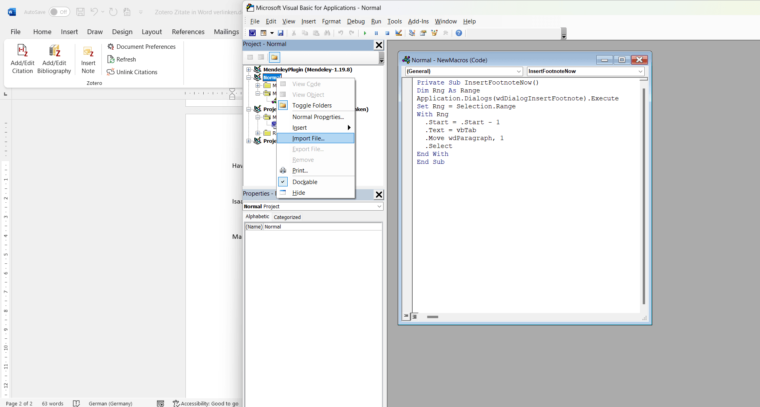
Alt + F11 to open the VisualBasic Editor. Right-click on ‘Normal’ to import the downloaded .bas script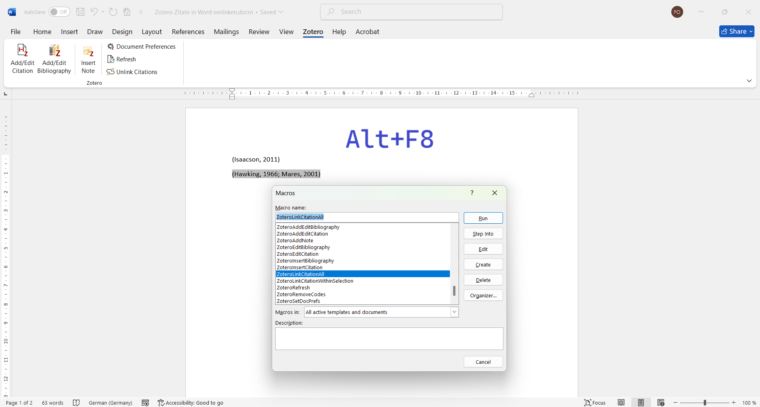
Alt + F8 execute the ‘ZoteroLinkCitationAll’ script using ‘Run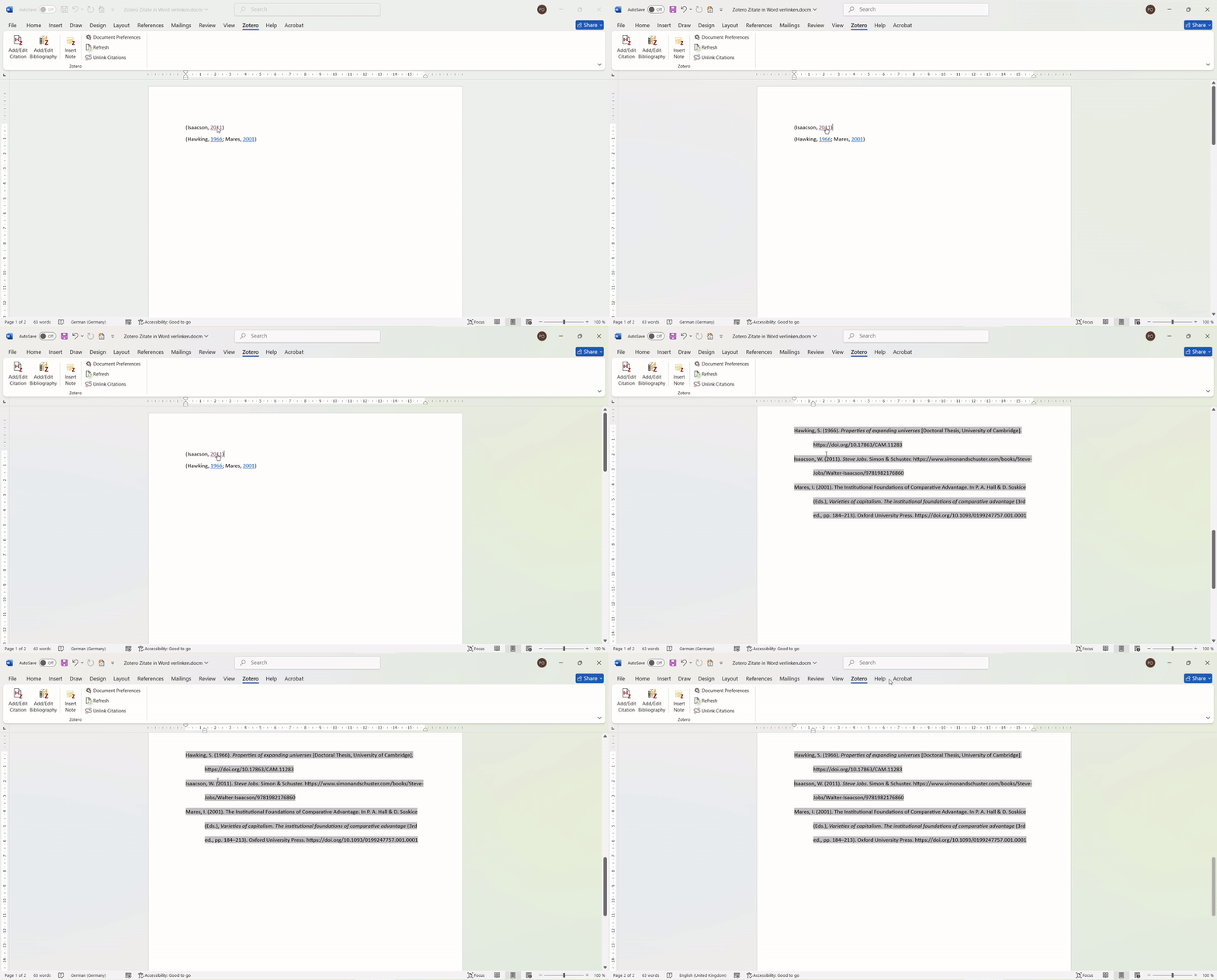
Summary
With ZoteroLinkCitation you can make citations in Word documents clearer and more interactive. You can find the detailed instructions and the macro on GitHub.
If you want to further optimise and customise your Zotero experience, I offer here on citationstyler.com custom-made Citation Styles and many other customisation options in my blog to tailor your literature management workflows perfectly to the requirements of your institute or department.