
No products in the basket.

How do I find the correct citation style?
Citation styles under control: Your comprehensive guide to academic references and citation styles

Zotero is acting up? Don't panic! With the right tricks, you can unleash the full potential of this ingenious reference management software. Forget frustration and fake citations - discover now how Zotero does exactly what you want!
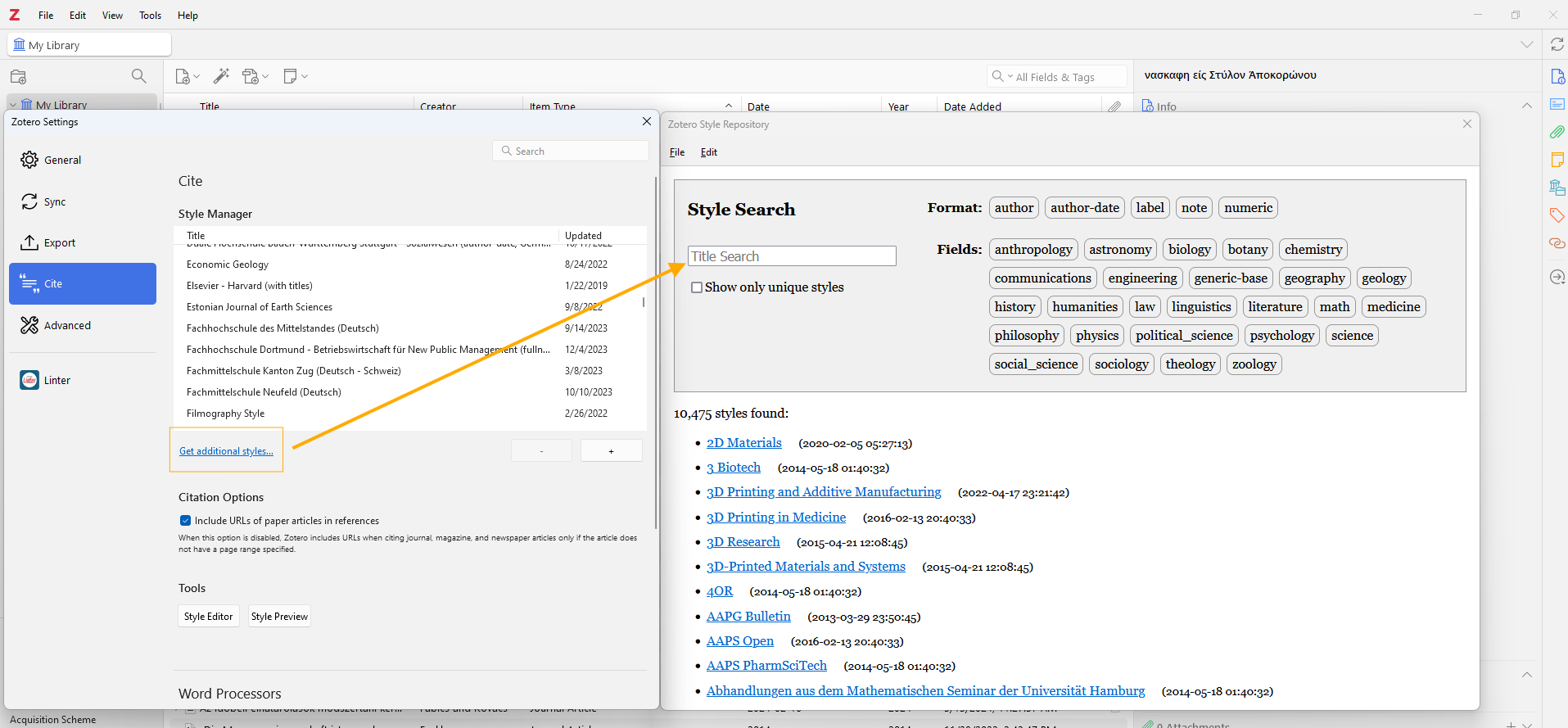
Zotero cites in your word processor of choise according to your chosen citation style. You will find more than enough citation styles in Zotero - there are currently more than 10,000 public styles available (with more than 1,000 made by me), and of course, also the 100+ available in my
When inserting the first citation in Word and co., Zotero will ask you for the desired citation style. But even after you have defined the citation style, you can change it again and again during the course of your work. Has a journal not accepted your paper? Change the citation style and resubmit!
This is how it's done in Word:
The accuracy of the most frequently used citation styles such as APA, Chicago, IEEE, Cite them Right Harvard, Vancouver / NLM you can usually rely on. With a lot of effort and love, a small team group of volunteers for the correctness, new creation and updates of the citation styles.
But you are looking for a style that is not yet in the directory? First of all, I would recommend looking in the Zotero forums to search for it. If a thread exists, you will usually find a style that already fits well, or you can vote for someone to create the style. This is usually done for journals, but less so for university styles. However, such styles can be added to my
However, Zotero only quotes as well as the quality of your metadata. An incorrect title, a distorted author's name or missing data such as the place of publication or year will be reproduced in the text reference and bibliography in exactly the same way.
If something is output incorrectly in the text document, check the following:
So if data is missing, it is essential to edit it directly in Zotero and not in the document itself. The consequence of this is that they can no longer be updated automatically later. Zotero also spits out a warning for this!
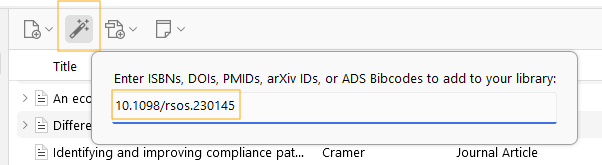
The import into Zotero via browser add-on or via DOI/ISBN/PMID utilising the magic wand directly in Zotero is always recommended. This not only ensures that the data is entered correctly, but also saves an enormous amount of time.
The so-called ‘translators’, which can read the metadata of websites directly, are constantly updated. The catalogues that store DOI and ISBN source data are also centralised and very well maintained sources.
It is therefore always recommended that sources are imported in your browser via the add-on or inside Zotero via its DOI, ISBN etc.
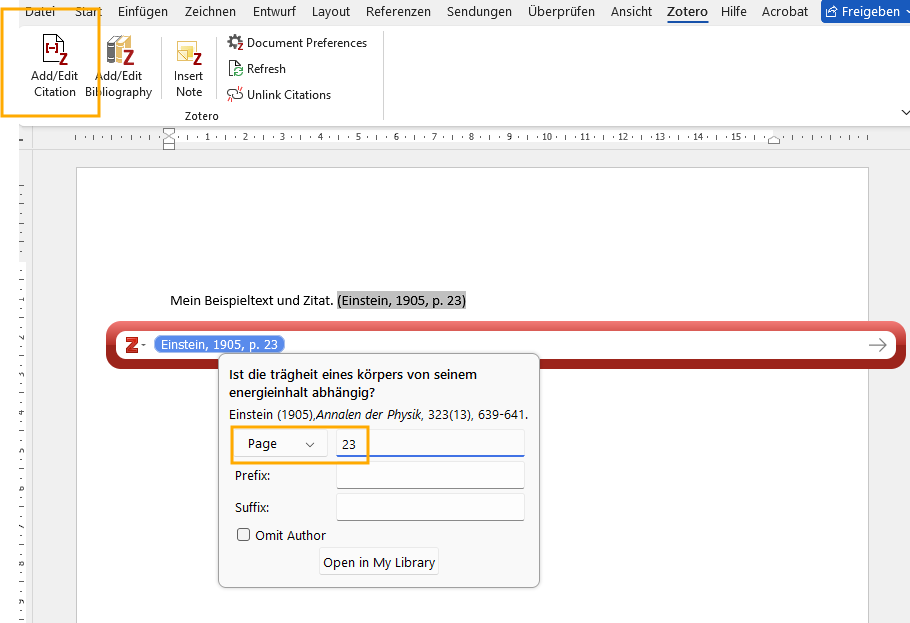
If specific passages (i.e. page, chapter, paragraph, etc.) need to be cited in a source, e.g. ‘...was shown (Müller et al., 2017, p. 23), it is essential that this is also done using Zotero. This way Zotero can also do its job and sources remain updateable. If you enter "p. 23" manually, Zotero will warn you that modifying a citation in this way will prevent it from being updated.
If you are using a public citation style from the Zotero directory, you can simply ask in the Zotero forums describing your problem and you’ll usually get a quick reply.
If you are using one of my styles , you’re welcome to ask me for help. Please let me know which style you’re using, which citation software, and ideally include a screenshot of your entry.
Citation styles under control: Your comprehensive guide to academic references and citation styles

Learn how to install a custom .csl citation style in Zotero - whether received from a publisher or purchased from my shop. Step-by-step instructions including verification in Word's document preferences!

Zotero can save you a tremendous amount of time in your academic work – if you use it correctly. In this article, you will find 9 tried and tested Zotero tips from real-world experience.
The ZoteroCiteLinker add-in makes Zotero citations in Word clickable and automatically links URLs in the bibliography. Simply via your menu bar.
