Anyone who studies at the APOLLON Hochschule will know this: writing content is one thing, but citing sources correctly is quite another. Zotero takes a lot of the work off your hands, especially if you use a citation style that matches your university’s guidelines exactly.
Below, you can see how to set up Zotero for this purpose and use the appropriate citation style.
Why Zotero is useful for your APOLLON studies
Without a reference management system, academic work often involves noting down sources by hand, inserting citations manually and constantly updating the bibliography. This takes up time and is a real headache.
Zotero allows you to:
Import literature from databases and catalogues with just a few clicks.
Insert citations directly into the text from Zotero.
have the bibliography generated and updated automatically.
If a style has also been defined that follows the APOLLON guidelines, you’ll have less to worry about when it comes to details such as order, punctuation or italics.
How APOLLON University specifies the use of citations
APOLLON University uses an author-date system (sometimes referred to as ‘Harvard’) in the text. Broadly speaking, it works as follows:
The text contains a short reference in brackets, such as ‘(Müller, 2020, p. 15)’.
In the bibliography, certain details appear in a fixed order, for example, author (year), title. Edition. Publisher Place: Publisher.
The rules for books, journal articles and online sources differ slightly.
There are guidelines on the use of emphasis and the spelling of names.
All of this can be coded into a CSL style. You still need to know the rules, but you don’t have to apply them manually every time.
From then on, you can select the Apollon style in Word/LibreOffice/GDocs. In-text citations and the bibliography will automatically conform to the APOLLON guidelines.
Examples of citations and a bibliography
To give you an idea of how the style works, here are a few simplified examples. The full details can be found in the guide and in the style itself.
Citations in the text (author–year):
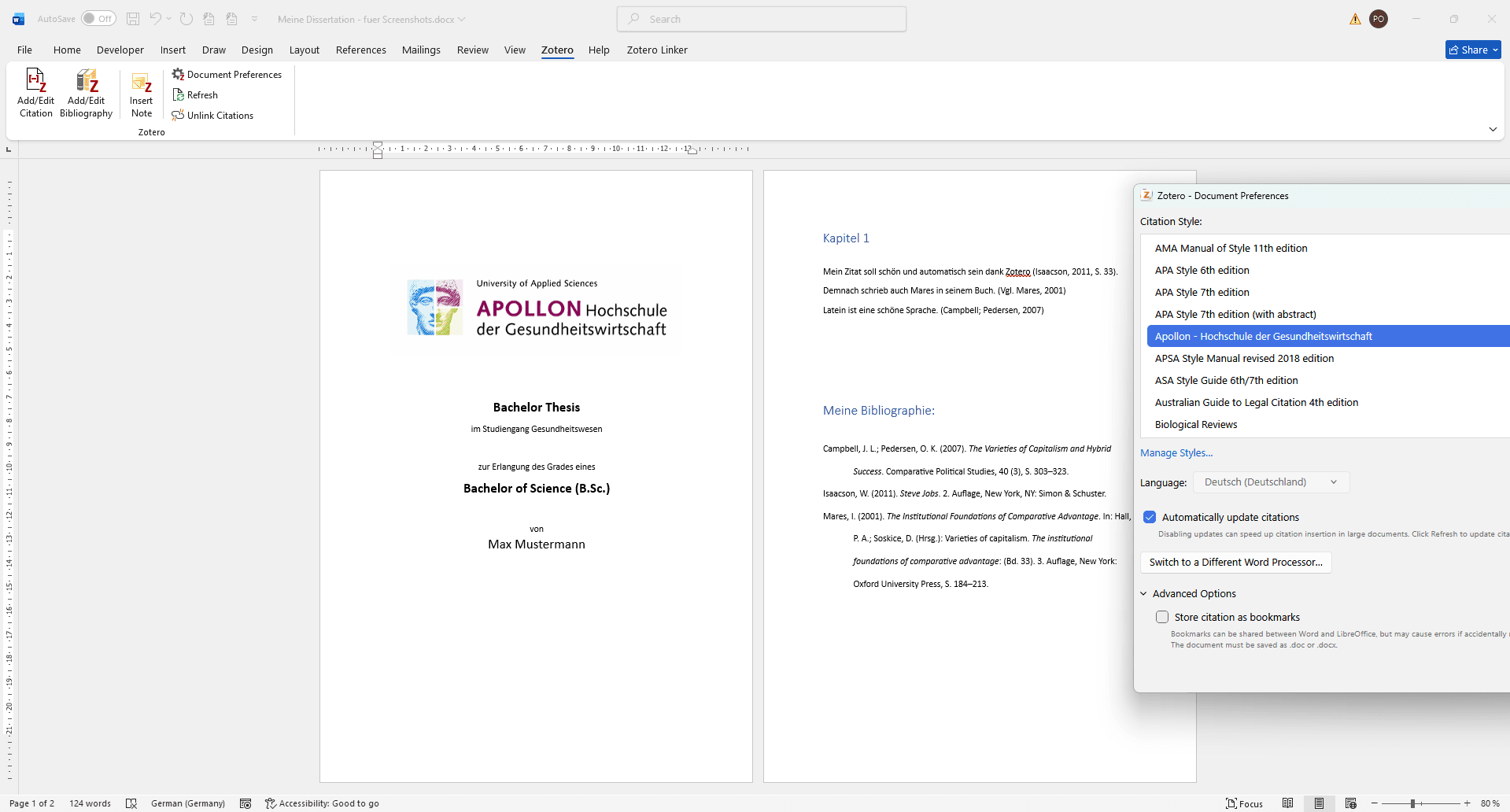
One author: “… as has already been shown (Isaacson, 2011, p. 15).”
Two authors: “… in a recent study (Campbell; Pedersen, 2007, pp. 45–46).”
Several sources: “… in various studies (Isaacson, 2011; Campbell; Pedersen, 2018).”
Entries in the bibliography:
Isaacson, W. (2011). Steve Jobs. New York, NY: Simon & Schuster.
Campbell, J. L.; Pedersen, O. K. (2007). The varieties of capitalism and hybrid success. Comparative Political Studies, 40 (3), S. 307–332.
If your data is properly organised in Zotero, the style will automatically apply the correct formatting, punctuation and order of the details. And this applies to all entry types included in the guidelines.
The Apollon University citation style applied to a Word document
Common mistakes you can avoid
Even with a good style, things can still go wrong. Usually, it’s not the style itself that’s the problem, but the data in Zotero or how it’s handled. I’ve even written an article on this very topic: Zotero is acting up? How to avoid common citation problems
1. Incomplete or incorrect information
For each source, check the author(s), title, year, edition, publisher, DOI or URL.
When importing, select the appropriate document type, for example ‘journal article’ rather than ‘book’.
2. Incorrect document type
Always select the correct type for anthologies, individual chapters, web pages, etc.
If an entry looks ‘strange’, it is often because Zotero has classified the source as the wrong type of literature.
3. Making changes directly in Word or LibreOffice
Do not edit citations and the bibliography manually in the word processing programme.
When you update, Zotero overwrites these changes.
It’s better to enter corrections in Zotero and then update the document.
4. Obsolete style version
If the university changes any of the rules or if the examples are no longer relevant, it’s worth taking a look at the style guide page.
There you can see when I last updated the style sheet, and if you need to, you can download the new version from the site or send me a a message.
With Zotero and my bespoke APOLLON citation style you’ll save yourself a lot of tedious work and minimise formatting errors – and thus avoid losing marks. That leaves you with more time for what really matters: your content.
CSL – Citation Style Language – is supported by over 50 tools, from Zotero and pandoc to WordPress plugins. You can find the complete list of all compatible programmes here.
With the update to Zotero 7, the popular ZotFile add-on is no longer compatible. But don't worry! There are 2 promising alternatives that fill the ZotFile gap. In this blog post, you can find out what has changed in Zotero 7 and which add-ons will help you to continue managing your PDFs efficiently.
The IU Citation Guide is based on APA 7 – but deliberately deviates from it in many places. In this blog post, you’ll find out which special rules apply and how to apply them correctly in Zotero.
Learn how to install a custom .csl citation style in Zotero - whether received from a publisher or purchased from my shop. Step-by-step instructions including verification in Word's document preferences!