


Step-by-step guide to correctly creating citations and bibliographies with Zotero
Are you writing an academic paper and want to cite correctly—whether using in-text short citations, numerical references, or traditional footnotes?
Zotero helps you manage your sources neatly and automatically create citations and bibliographies according to the guidelines of your university, institute or journal.
I have been working on the CSL citation style project for over ten years; it forms the foundation for the more than 10,000 citation styles in Zotero. In this article, I will show you, step-by-step,how to set up Zotero and use it correctly in the writing process – from importing your sources to the final bibliography.
Why Zotero?
Zotero is a free open source software that is specially designed for researchers and students alike. Not only does it enable you to organise to sources, but also enable you to cite correctly and create at ease. Completely automatic.
You insert your sources into Zotero (on your computer, tablet or mobile phone) and cite them as you write. At the end you add a bibliography, with one click, and you are ready for submission.
Step-by-step instructions
Step 1: Installing Zotero
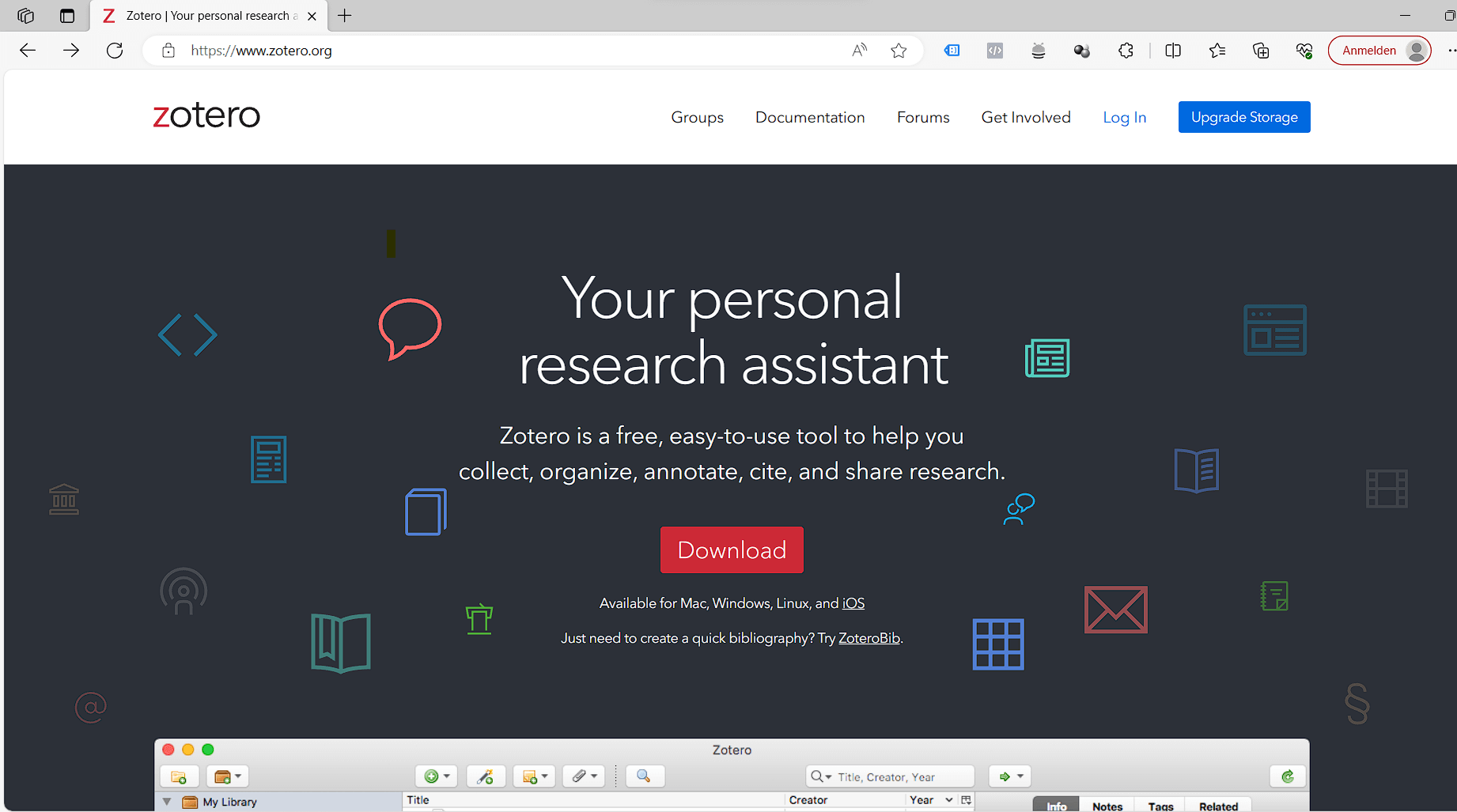
To use Zotero, you must first download and installZotero. Visit the official Zoterowebsite, download the application and install it on your computer. Zotero is available for Windows, Mac and Linux alike.
Step 2: Setting up your account
After the installation register for a Zotero- account . This allows you to share your literature data between your different devices like with a tablet or mobile but also safely store your library. Please do not skip this step.
Step 3: The Zotero browser extension
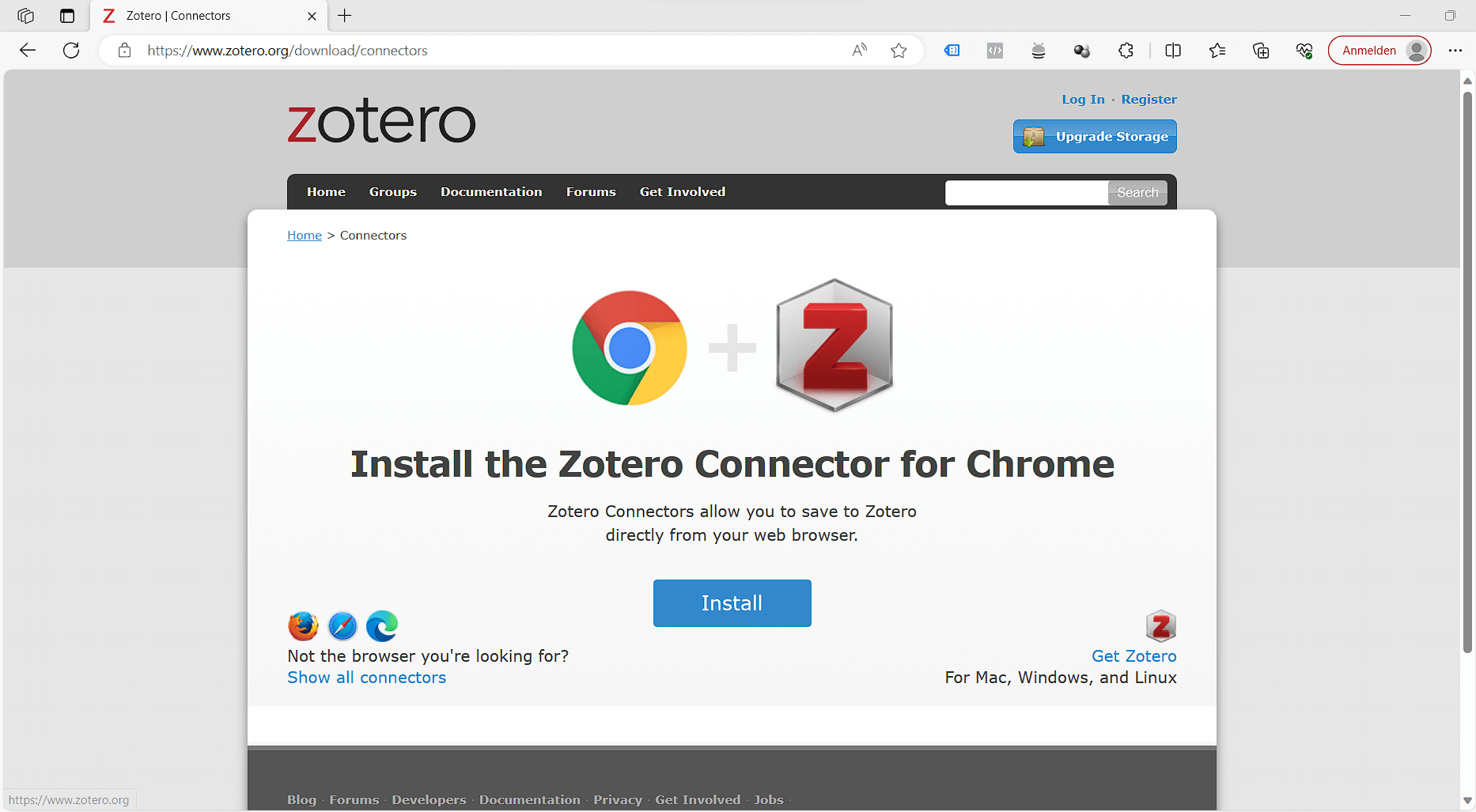
Zotero offers a browser extension for Chrome, Firefox and Safari. Download this extension to import your sources directly to your library.
Zotero automatically recognises the metadatawhile you surf the internet. Do you need an article from JSTOR or a preprint from arXiv.org? An article from the New York Times or a book from the National Library? Zotero is your companion, wherever you go.
Simply open the following page and download the Zotero Connector for your browser:
https://www.zotero.org/download/connectors
(It may well be that the connector is not visible at first. In this case, it is advisable to pin it to the bar.)
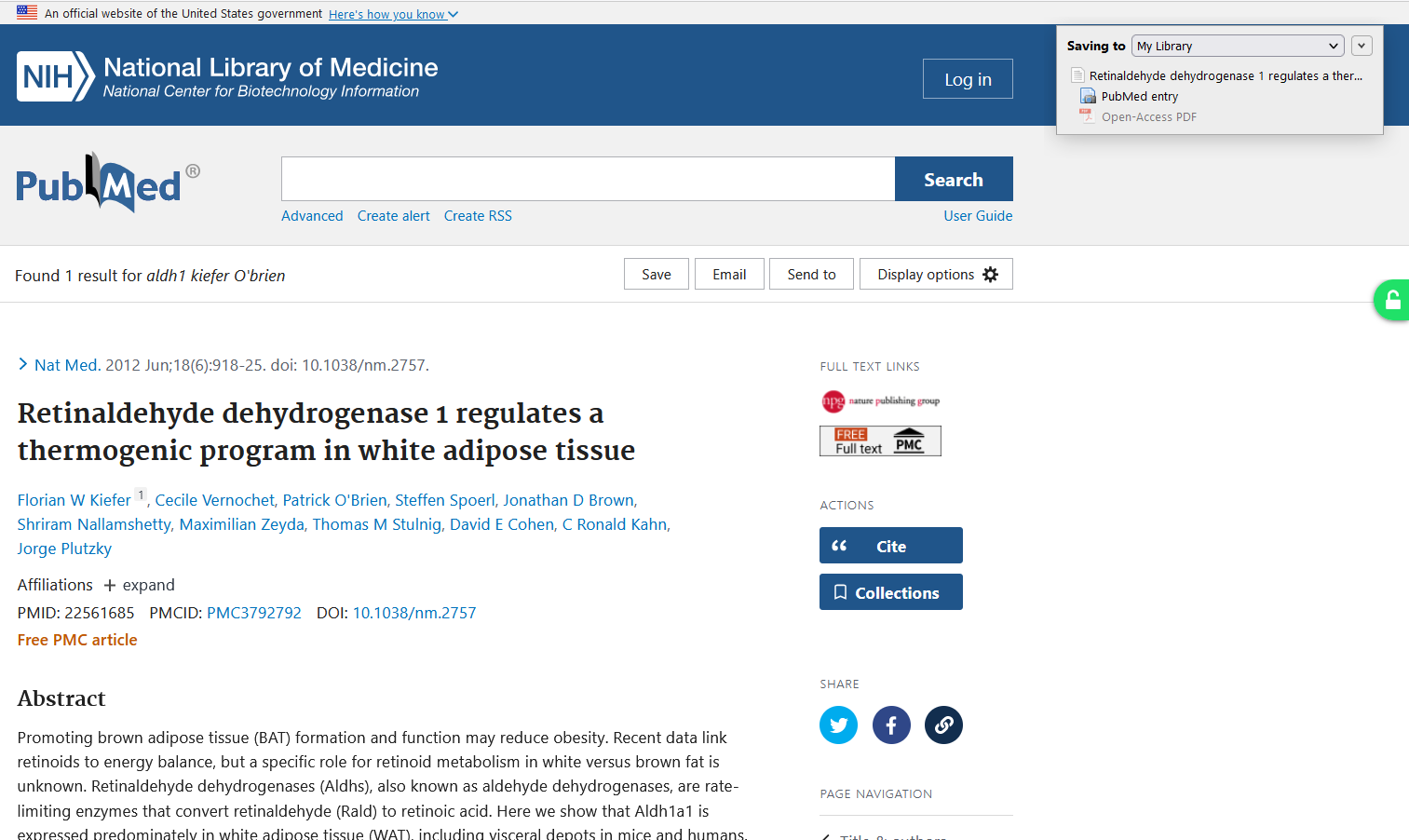
Once you have installed the extension, you can easily import literature sources from websites, online libraries and catalogues. Your sources are automatically organised in your Zotero- library. See in the below picture in the top right corner how Zotero automatically detects the item type and you can even choose the library where the entry should be saved.
Step 5: Install Word Processor Integration
Zotero creates citations in your text or footnotes and bibliographies for any text editor, directly in Word, LibreOffice or Google Docs. This integration is automatically installed for you when you install Zotero, regardless of whether you use Word or another supported programme. You will find a new tab called Zotero in the menu.

If this tab does not appear you can reinstall the extension from the settings. To do this, simply scroll down to ‘Cite’ in the Zotero settings and click on ‘Reinstall Microsoft Word Add-on’ under ‘Word Processors’. See also the Zotero instructions "Installing the Zotero Word Processor Plugins".
Step 6: Installing the right citation style
The CSL citation style project now offers over 10,000 citation styles. This allows you to format your work to suit almost any style guide or journal. You can find and install them directly within Zotero under Settings > Cite, or install them via your browser: https://www.zotero.org/styles
Zotero's public styles cover most journals and style guides. However, department-specific guidelines from German universities are rarely included, as they are only documented internally – for example, as a PDF guide from the department. For these cases, I offer customized CSL styles in my shop. Before purchasing, please check the examples shown to ensure the style meets your requirements. If the right one isn't available, you can request a Your Custom Citation Style .
A common special case is the so-called "German citation style": this does not refer to a single, uniformly defined style, but rather serves as a collective term for citation methods that use footnotes. I explain in detail how to handle this under German Citation Style: Citing Correctly with Zotero.
Step 7: Create citations
You can then start working on your document right away!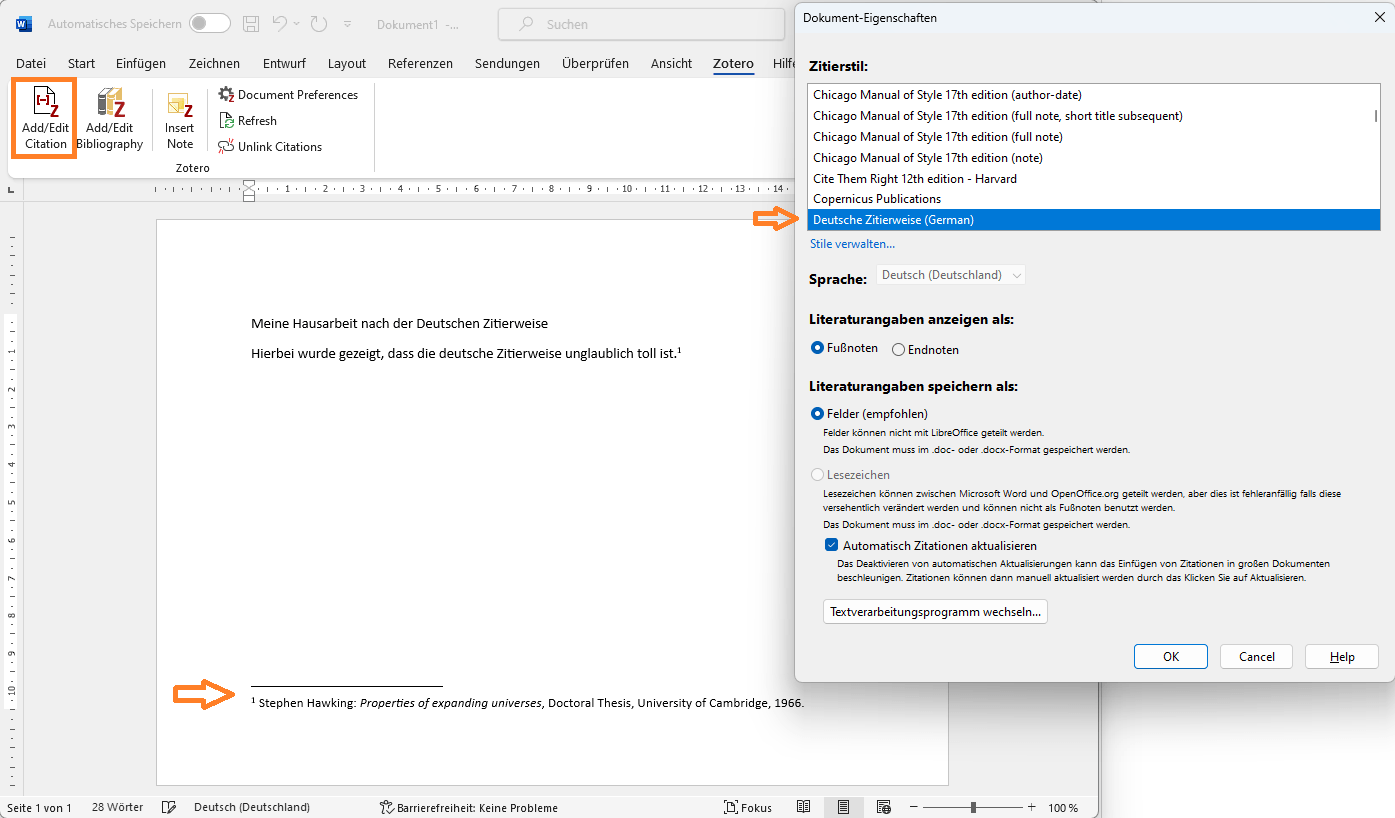
Simply click on "Add/edit Citation," and you will be asked to select a style. Then, choose your source, and Zotero will automatically generate the citation in the format prescribed by the selected citation style.
You can then insert the bibliography at the end. To do this, simply position the cursor and click on the ‘Add/Edit Bibliography’ button. It's that simple. Zotero automatically keeps it consistent with your citations. And if you want to insert additional sources see the linked guide.
Summary
Zotero handles the formatting of citations and bibliographies entirely for you—provided the citation style accurately reflects your institute's requirements. If that is the case, there is no need for manual adjustments, allowing you to focus on the content of your work.
If you are unsure about decorating or choosing the right style, just write to meI also offer Zotero training sessions for groups and academic chairs, ranging from short introductory courses to complex workflows.
Good luck with your work.