
No products in the basket.


Citing correctly with Zotero
Literature research and citation according to German citation style done right, thanks to Zotero and CSL citation template. Here I show you how to do it.

Zotero can save you a tremendous amount of time in your academic work – if you use it correctly. In this article, you will find tried and tested Zotero tips from real-world experience.
The most important step of all – and the one most often skipped.
After importing (article, PDF, DOI, ISBN), you should always check author, title, year and document type . Errors are common here and will follow through to your documents until you want to hand in.
Common causes:
In general, it is always advisable to work directly in the browser using the Zotero Connector.
Rule of thumb:
What is incorrect in Zotero does not suddenly become correct in the document.
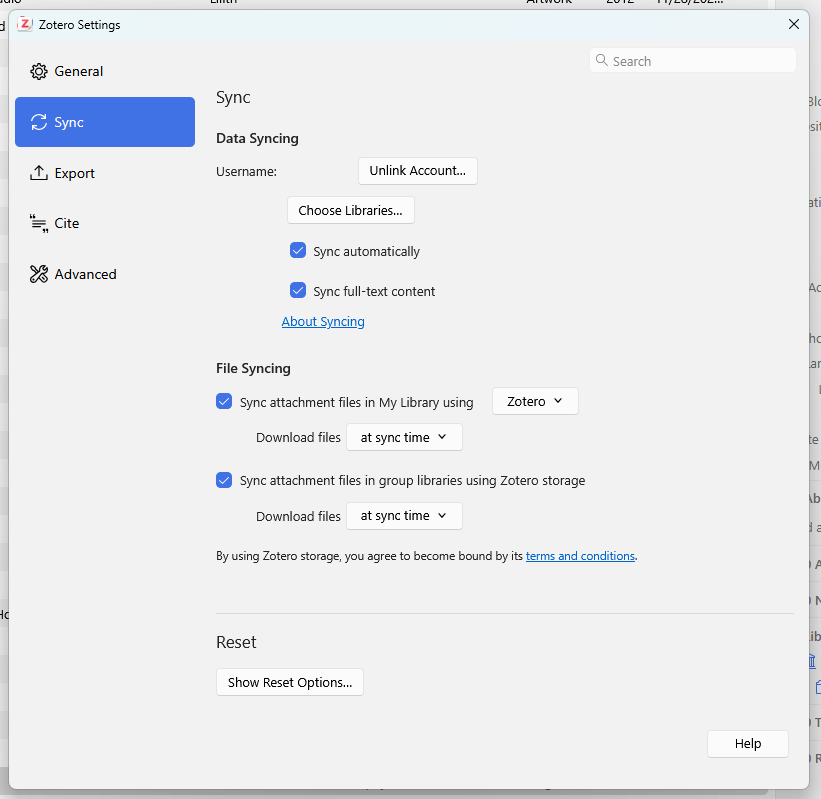
A surprising number of users work without synchronisation enabled.
This can lead to different libraries on laptops/desktops, missing PDFs, outdated citations in the document and, above all, data loss in the event of theft or technical problems.
Set up the synchronisation properly before you start any major work. Zotero will take care of the rest.
Avoid having a large, unstructured library.
Instead:
This speeds up:
Consistent file names save time – especially outside of Zotero. This saves you time and tedious searching later on. You can easily customise this to suit your needs in the Zotero settings under ‘General’.
Recommended format:
Author – Year – Short Title.pdf
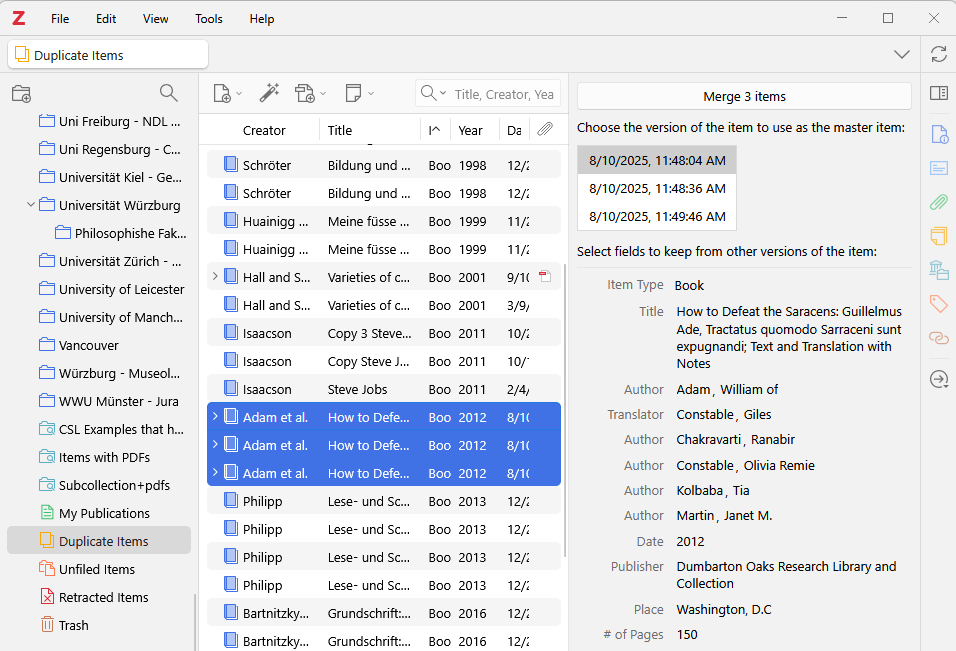
Duplicate entries are one of the most common causes of:
Important: Do not delete – merge. This is the only way to ensure that Zotero remains consistent. The in-house duplicate detection feature Zotero in version 7 works extremely well. However, the plugin Zoplicate can also be used as an alternative.
Tags are not a substitute for collections.
Use them:
Example:
This allows you to filter quickly later on, without any confusion.
Pro tip: You can simply drag an entry onto a tag and it will be marked correctly immediately.
Key ideas belong to the source, not in a separate document.
Ideal for:
When writing, you then save yourself from constantly switching back and forth.
Before you start your work, I recommend that you familiarise yourself with Zotero and, above all, with the Word plugin. It is very common for people to be unaware that this exists, even though it is one of the main functions of Zotero (and other reference managers). The software is designed to make your work easier, including when it comes to citing sources. Install the plugin and use it to cite your sources. You can also find my instructions under Citing correctly with Zoterowhere I show exactly those steps.
It is important that quotations are not changed manually. Pages are entered using the plugin, and you can also omit the author if you want to cite narratively like '... Miller postulated in his study (2010).'. Zotero manages citations internally. Manual changes always lead to subsequent problems.
Pro tip: Set up a keyboard shortcut to insert quotations more quickly without having to move your hand to the mouse. I recommend Ctrl+D.
Before submitting your work, it is worth carrying out a structured check:
This helps to avoid many typical last-minute mistakes.
I can really recommend the tips shown here to everyone. They are things that everyone can benefit from.
I have also provided the following article to help solve common problems.
👉 Zotero is acting up? How to avoid common citation problems
Literature research and citation according to German citation style done right, thanks to Zotero and CSL citation template. Here I show you how to do it.
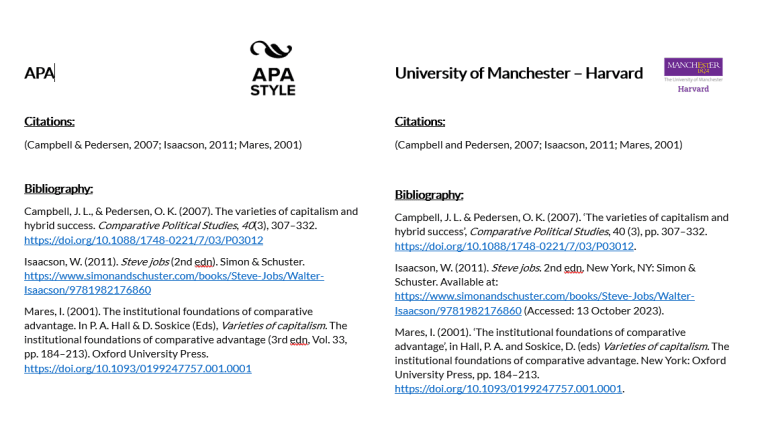
The University of Manchester has its own Harvard guidelines, which differ from other Manchester styles in the Zotero Style Repository. In this post, you’ll find out what matters and how a specially developed CSL citation style can save you days of formatting work.
You have received the Zotero message ‘You have made changes to this citation after it was created by Zotero. Do you want to keep your changes and prevent future updates?’ from Zotero? Here you can find out how to solve this problem.

Citation styles under control: Your comprehensive guide to academic references and citation styles