

A common problem that arises when using Zotero is that the font of footnotes or the bibliography in the Word or LibreOffice document does not meet expectations. Many people assume that this is due to the Zotero citation styles - but the solution actually lies in the formatting within the word processing programme. Here you can find out how to solve the problem.
The problem: Standard formatting overwrites your settings
When you insert citations with Zotero, they are automatically provided with a certain text formatting in Word or LibreOffice. Zotero uses the standard styles of the word processing programme for this:
- For citations: Normal (Word) or Default (LibreOffice)
- For bibliographies: Bibliographie/Literaturverzeichnis (Word) or Reference1 (LibreOffice)
This means that the font, line spacing or other formatting for footnotes or bibliographies are defined by these styles - not by Zotero or the citation style. The Citation Style Language does not have any setting for fonts and this problem is also present in the Zotero Knowledge Base erklärt.
The solution: Change the formatting styles in your word processing programme
Um die Schriftart oder andere Formatierungen zu ändern, musst du die entsprechenden Stile in Word oder LibreOffice anpassen. So geht's:
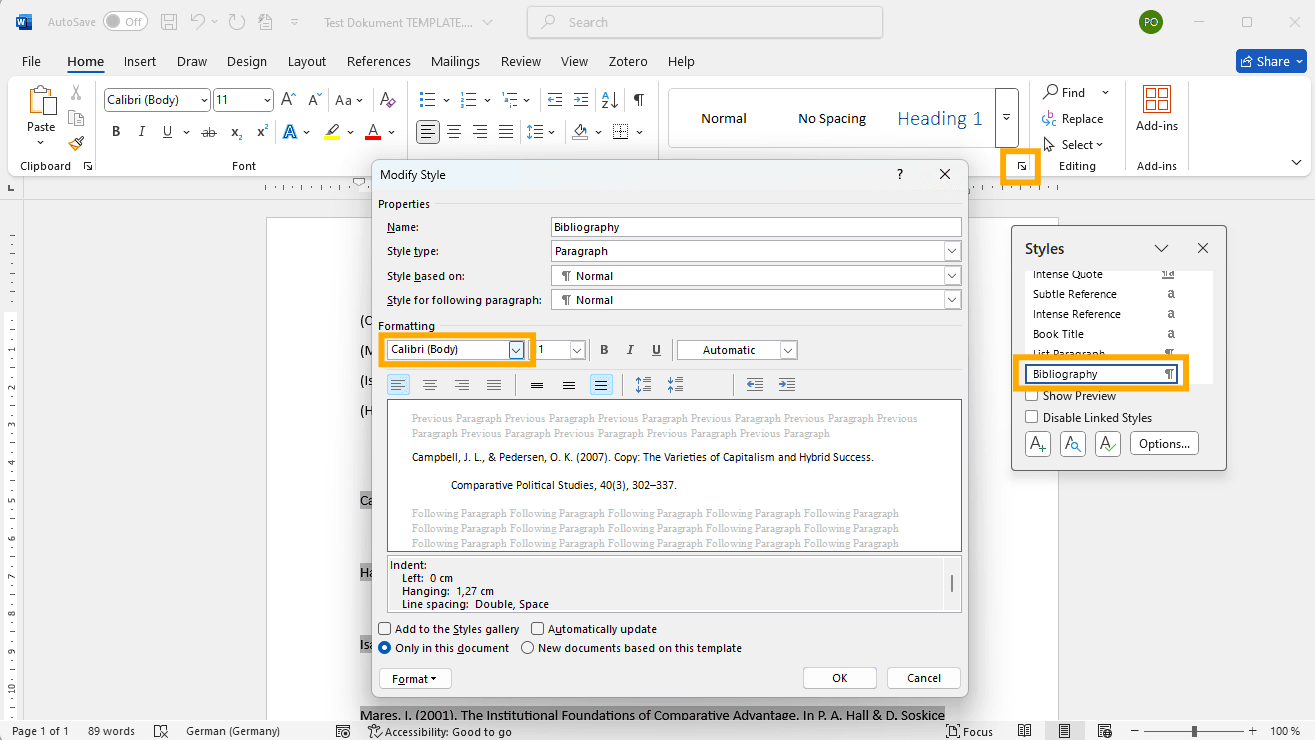
- Select and edit style:
- Place the cursor in a Zotero citation or the bibliography.
- Open the Style editor in your word processing programme:
- In Word you can find this under the menu Start and the category 'Styles'. Click there on modify style.
- In LibreOffice, open the style manager with Format > Vorlagen und Formatierung or by hitting F11.
- Choose the style Normal (for citations) or Bibliography (for the bibliography).
- Customise formatting:
- Change the font, line spacing or other properties as required.
- Save your changes.
- Automatic application to the entire document:
- The adjustments are automatically applied to all citations and the bibliography in the document that are linked to the corresponding styles.
Why is this important?
By adjusting the styles directly in Word or LibreOffice, you avoid unnecessary formatting issues and ensure that your academic work looks professional and consistent. In addition, the Zotero field is retained, which means that you can continue to edit the citations without having to adjust the formatting again.
Summary
The customisation of footnote and bibliography formatting is not a problem for the Zotero citation style, but for the word processing software. With just a few clicks, you can customise the standard styles in Word or LibreOffice to ensure a uniform and aesthetic appearance. This saves you time and avoids frustration when formatting your work.
If you want to further optimise and customise your Zotero experience, I offer here on citationstyler.com custom-made Citation Styles , and many other useful tips on my blog to tailor your literature management workflows perfectly to the requirements of your institute or department.