
No products in the basket.
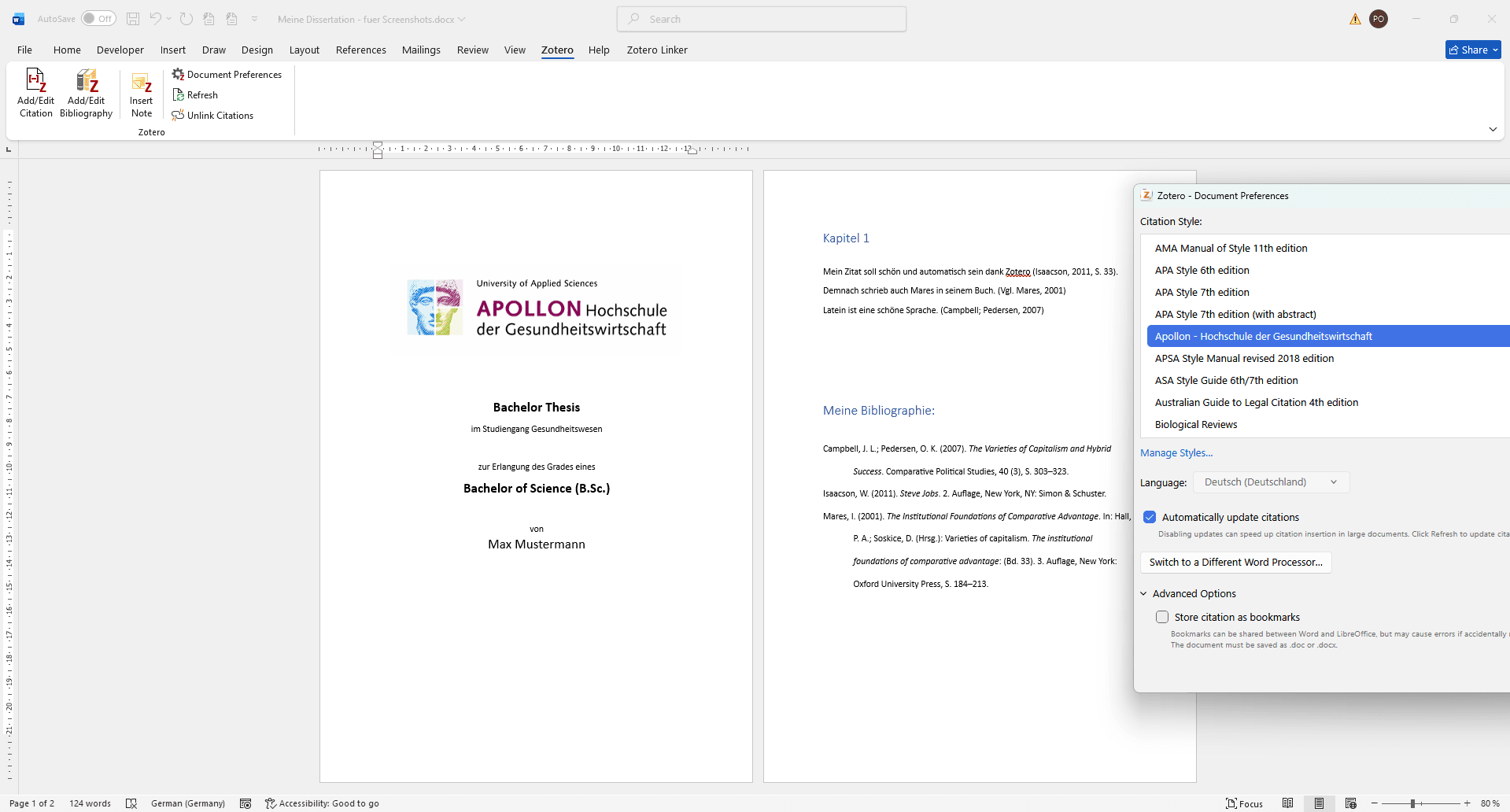
Zotero & APOLLON University: how to cite correctly
Learn how to use Zotero at APOLLON University: setup, CSL citation style installation, and tips for avoiding common mistakes.
You have received the message ‘You have made changes to this citation after it was created by Zotero. Do you want to keep your changes and prevent future updates?’ from Zotero?
In this article you will learn how to avoid this message AND how to keep your citations updatable.
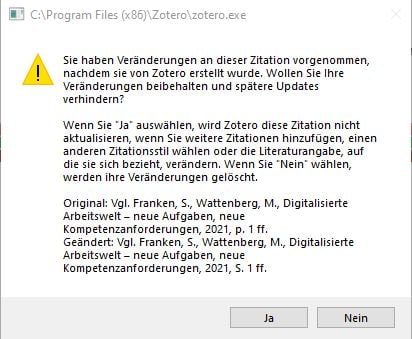
You have made changes to this citation after it was created by Zotero. Do you want to keep your changes and prevent future updates?
If you cite a lot, you will often need to give precise page, chapter and paragraph references. The Zotero Word add-on makes this very easy by simply entering the page when entering the source. The citation style then does the rest. But if, for example, you then want to enter a ‘cf.’ or an ‘ff.’ after the pages, i.e. (Müller, 2011) should become (cf. Müller, 2011, p. 13 ff), one naturally thinks of simply rewriting this text generated by Zotero.
And THAT is precisely the problem.
Zotero then spits out the message shown above and then also specifies what could happen:
If you choose YES, nr. 1, your citations would then not be updated. This means, for example, if you realise that the source was from 2012 and not 2011, change this in the Zotero metadata and then of course also want to update these sources in the text, it would still show 2011 as it wouldn't update.
If you choose NO, i.e. nr. 2, the sources would then be updatable, BUT both the ‘cf.’ and the ‘ff. ‘ would be removed/reverted using ‘Add/Edit Bibliography’.
So how can you get round this?
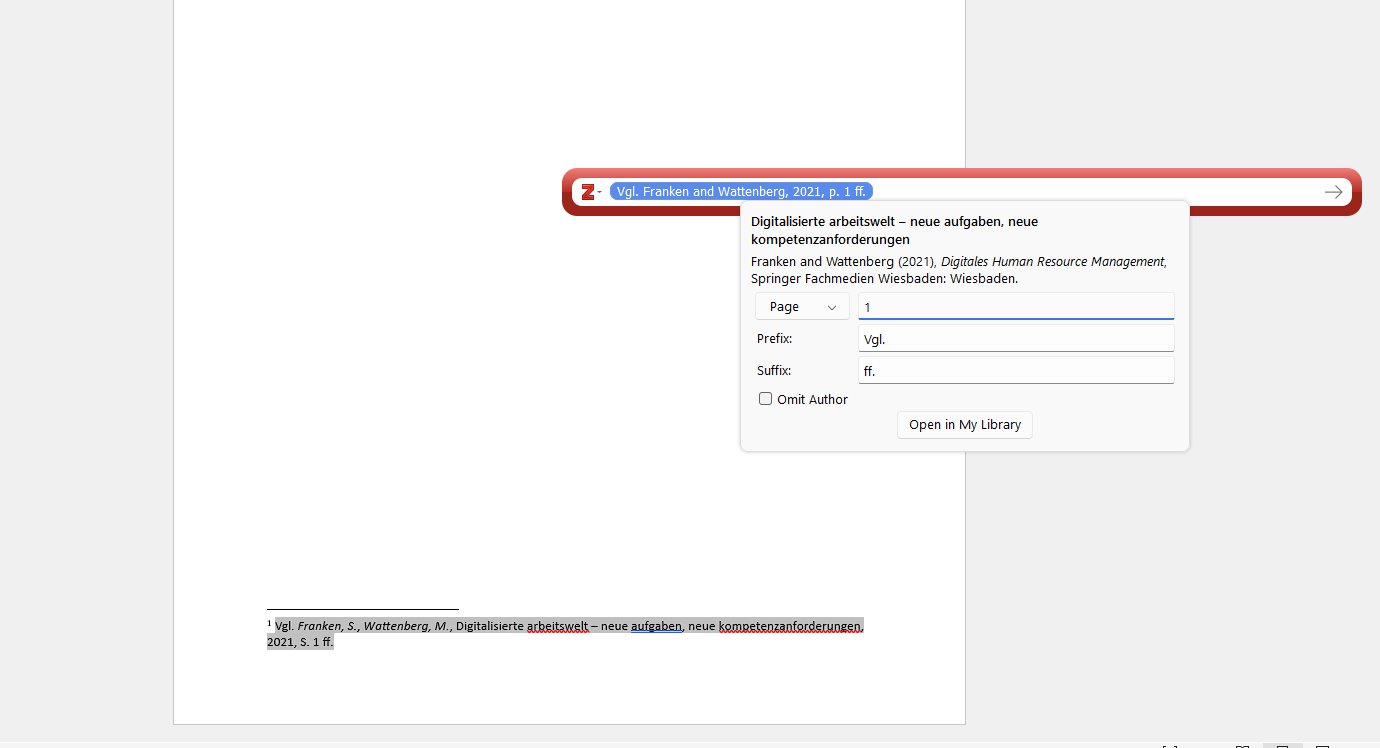
The required changes can be changed using Zotero. If you click on the citation bubble, you will see 3 fields. One for the ‘locator’, to specify the exact page/chapter/paragraph.... Other changes can then be made utilising the prefix and suffix fields. This gives you the same results, with the important difference that your sources can still be updated.
Citing and the correct use of Zotero (or other software) must be learnt. I also have more tips in my article ’Zotero is acting up? How to avoid problems when quoting.‘. If you have any questions about Zotero, I can only advise you to search the Zotero forum for solutions or to ask yourself.
And if you have any questions about citations and citation styles, I am of course always available via my contact form.
Learn how to use Zotero at APOLLON University: setup, CSL citation style installation, and tips for avoiding common mistakes.
Zoplicate is a powerful Zotero plugin that efficiently recognises and merges duplicate entries. It offers advanced duplicate detection and saves time when managing large literature databases.

Learn how to create and customise a CSL citation style in Zotero or Mendeley step by step – including tips on the style editor, XML code and common sources of error.
Which literature management system is right for you? Comparison of Zotero, Mendeley, Citavi, EndNote, Paperpile, Papers and Logically – including styles, support and future-proofing.