Zotero can save you a tremendous amount of time in your academic work – if you use it correctly. In this article, you will find tried and tested Zotero tips from real-world experience.
Table of contents
1. Check metadata immediately after import
The most important step of all – and the one most often skipped.
After importing (article, PDF, DOI, ISBN), you should always check author, title, year and document type . Errors are common here and will follow through to your documents until you want to hand in.
Common causes:
PDFs with poor metadata
Websites with poor ‘translators’ (just make a post about the issue in the Zotero forum and it will be fixed)
ISBNs that are not catalogued in any database
Preprints or reports with incorrect type
In general, it is always advisable to work directly in the browser using the Zotero Connector.
Rule of thumb: What is incorrect in Zotero does not suddenly become correct in the document.
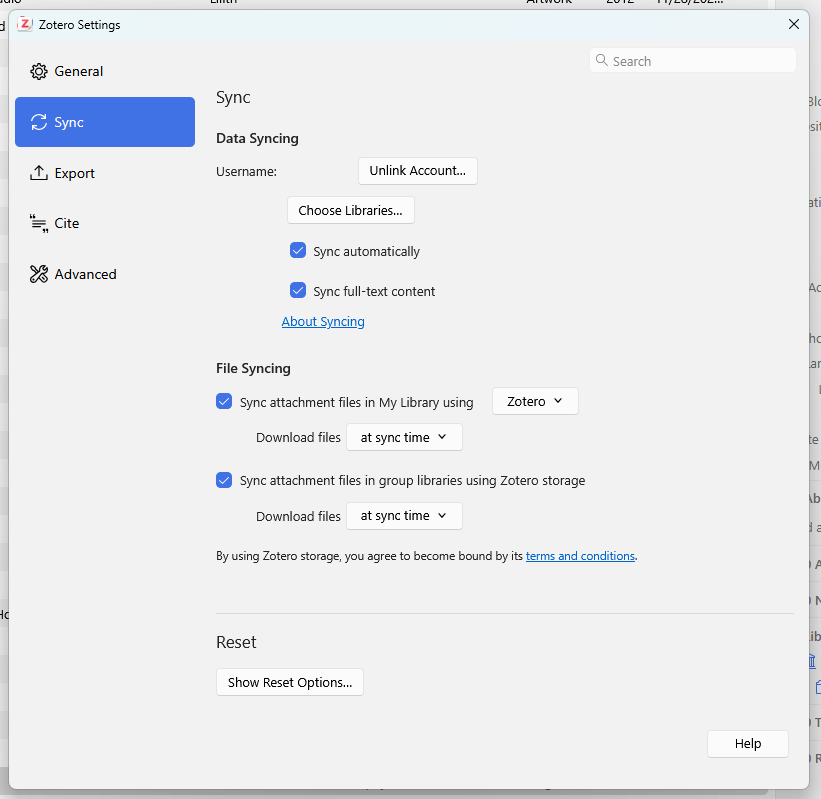
2. Set up synchronisation – before you start working
A surprising number of users work without synchronisation enabled.
This can lead to different libraries on laptops/desktops, missing PDFs, outdated citations in the document and, above all, data loss in the event of theft or technical problems.
Set up the synchronisation properly before you start any major work. Zotero will take care of the rest.
Zotero Sync Settings. Once set up, Zotero does the rest.
3. Use collections on a project basis
Avoid having a large, unstructured library.
Instead:
one collection per paper / project
Sources can be found in multiple collections without being duplicated.
This speeds up:
Research
citing papers
fixing errors before publishing
4. Have PDFs renamed automatically
Consistent file names save time – especially outside of Zotero. This saves you time and tedious searching later on. You can easily customise this to suit your needs in the Zotero settings under ‘General’.
Recommended format:
Author – Year – Short Title.pdf
5. Merge duplicates regularly
Duplicate entries are one of the most common causes of:
'2001a / 2001b' issues
apparently inexplicable citation problems
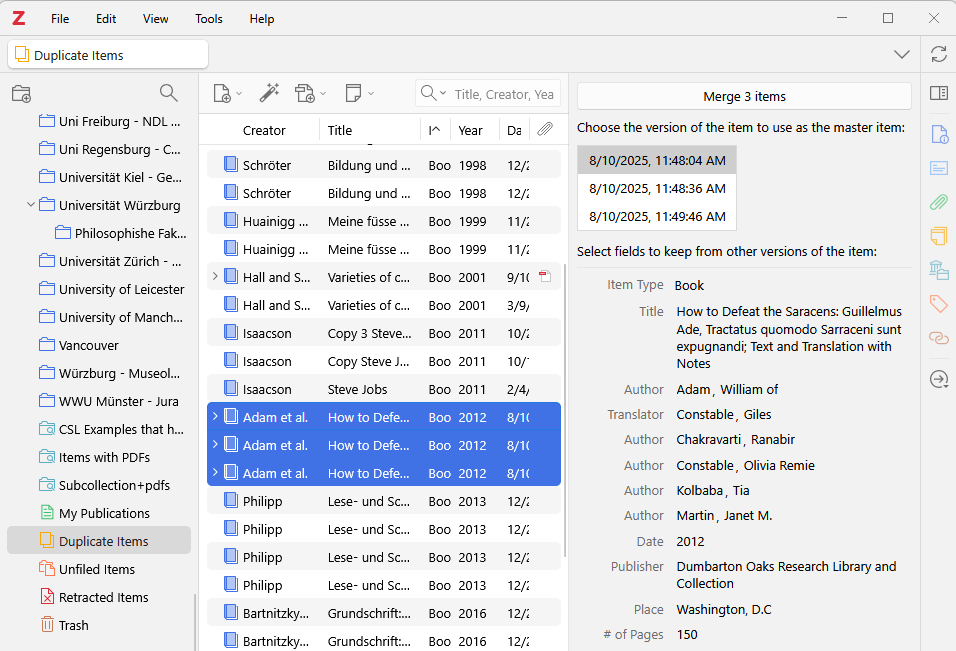
Important: Do not delete – merge. This is the only way to ensure that Zotero remains consistent. The in-house duplicate detection feature Zotero in version 7 works extremely well. However, the plugin Zoplicate can also be used as an alternative.
Zotero continuously searches for duplicates. You can find these under ‘Duplicate Items’ and then simply merge them.
6. Use keywords (tags) in a targeted manner
Tags are not a substitute for collections.
Use them:
economicaly
theme-based
consistently
Example:
Method
Theory
Dataset
This allows you to filter quickly later on, without any confusion. Pro tip: You can simply drag an entry onto a tag and it will be marked correctly immediately.
7. Save notes directly in the item
Key ideas belong to the source, not in a separate document.
Ideal for:
Key points
relevant paragraphs/sections
short interpretations
When writing, you then save yourself from constantly switching back and forth.
8. Always insert citations using the Word/LibreOffice plugin and do not modify them manually.
Before you start your work, I recommend that you familiarise yourself with Zotero and, above all, with the Word plugin. It is very common for people to be unaware that this exists, even though it is one of the main functions of Zotero (and other reference managers). The software is designed to make your work easier, including when it comes to citing sources. Install the plugin and use it to cite your sources. You can also find my instructions under Citing correctly with Zoterowhere I show exactly those steps.
It is important that quotations are not changed manually. Pages are entered using the plugin, and you can also omit the author if you want to cite narratively like '... Miller postulated in his study (2010).'. Zotero manages citations internally. Manual changes always lead to subsequent problems.
Pro tip: Set up a keyboard shortcut to insert quotations more quickly without having to move your hand to the mouse. I recommend Ctrl+D.
9. Before handing in: tidy up your library once
Before submitting your work, it is worth carrying out a structured check:
Check for duplicates and merge them
Regenerate bibliography and check it carefully
Possibly remove the links to the quotations and bibliography (do this ONLY in a copy).
This helps to avoid many typical last-minute mistakes.
Summary
I can really recommend the tips shown here to everyone. They are things that everyone can benefit from.
I have also provided the following article to help solve common problems.
Learn how to create and customise a CSL citation style in Zotero or Mendeley step by step – including tips on the style editor, XML code and common sources of error.
Beaver is an AI research assistant that lives directly within Zotero as a side panel. You can search papers, get explanations of text passages and graphics, correct metadata, and organise your library automatically – all without leaving Zotero. A detailed look at its features, costs, and why native integration makes all the difference.
The Model Context Protocol (MCP) enables Zotero to be connected directly to AI assistants such as Claude or ChatGPT. There are now numerous projects that implement this, ranging from lightweight Python servers and Zotero plugins to hosted cloud services. We present all the latest Zotero MCP solutions and show which project suits which workflow.
AI tools such as ChatGPT are helpful, but there are specialised alternatives for scientific research. This article shows you the best AI research tools, such as OpenSciLM, Scholar Labs, Elicit, Consensus & Co., and explains which tool is suitable for which research step.