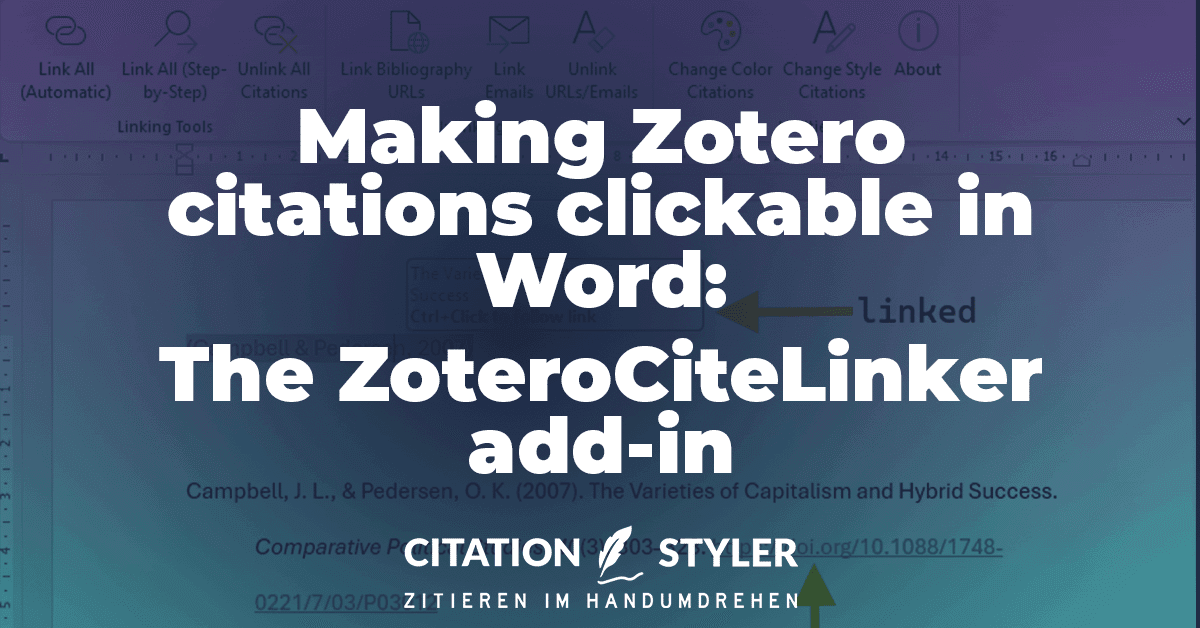
Anyone who writes academic papers using Zotero and Word is familiar with the problem: references in the text and the bibliography are two separate worlds. As a reader, you have to laboriously scroll back and forth between the text and the bibliography to find the complete source reference. I recently had a VBA script for linking presented, but now it's even easier. The ZoteroCiteLinker add-in by Serdar Aydin solves this problem elegantly. And without complicated VBA macros.
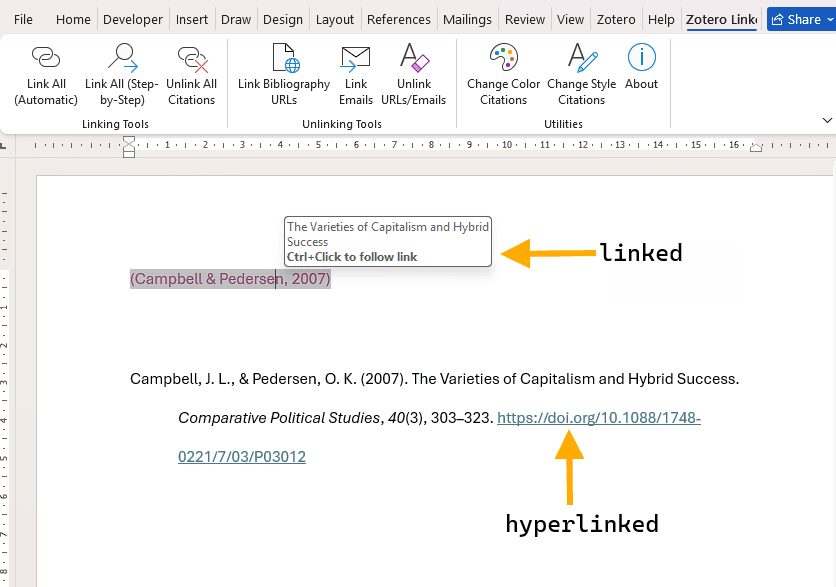
ZoteroCiteLinker automatically created the link between the citation and the bibliography and formatted the DOI in the bibliography itself as a clickable URL.
What does ZoteroCiteLinker do?
The free Word add-in offers two key features that make your academic documents much more reader-friendly:
In-text citations become clickableNumeric citations such as [1] or author-date citations such as (Author, 2020) in your text become hyperlinks that jump directly to the corresponding entry in the bibliography.
Bibliography will be linked: DOIs and URLs in your bibliography are automatically formatted as clickable hyperlinks, allowing readers to go directly to the online source.
This is particularly useful for electronic publications, PDF documents or longer theses.
ZoteroCiteLinker in Word
Installation and use
Important noteThe installation of ZoteroCiteLinker requires several precise steps. Be sure to follow the official installation guide on the GitHub page Exactly, because the installation can vary depending on the version of Word and Windows.
Requirements
Microsoft Word (365, 2021, 2019 or 2016)
Zotero with Word plugin installed
A finished document with Zotero citations
How it works
Download the ZoteroCiteLinker add-in from the GitHub page and install it according to the detailed instructions.
Open your Word document with Zotero citations
Important: First save a backup copy of your document!
Use the ZoteroCiteLinker functions via the Word menu bar:
Link Citations: Make citations clickable
Hyperlink URLs: Formats links in the bibliography
Important information
Create a backup!
Since you may need to "unlink" your Zotero citations, you will no longer be able to perform automatic updates via the Zotero plugin afterwards. Therefore, always create a backup copy and make these changes in the copy, never in the original.
When to use
Only use ZoteroCiteLinker if:
All source references have been included in full.
You do not need to make any further changes to the citations.
The tool currently only works with certain citation styles. However, as these are the most commonly used citation styles, such as IEEE, Nature, Vancouver and APA, this plugin should work for most users.
Summary
ZoteroCiteLinker turns static Word documents into interactive academic papers. Installation requires a little attention (follow the GitHub instructions carefully!), but using it is child's play.
Zotero can save you a tremendous amount of time in your academic work – if you use it correctly. In this article, you will find 9 tried and tested Zotero tips from real-world experience.
Which literature management system is right for you? Comparison of Zotero, Mendeley, Citavi, EndNote, Paperpile, Papers and Logically – including styles, support and future-proofing.
You have received the Zotero message ‘You have made changes to this citation after it was created by Zotero. Do you want to keep your changes and prevent future updates?’ from Zotero? Here you can find out how to solve this problem.