


Are you studying at FOM?
Is your next assignment coming up?
Don't fancy spending another night writing and checking footnotes and bibliography manually?
Welcome to my blog post about the art of literature research and citation with Zotero! In this article, I'll show you how to write your academic papers efficiently by using the great tool called Zotero . It is the ultimate solution for organising your research sources and citing your sources correctly and effortlessly.
Why Zotero?
You add your sources to Zotero (on your computer, tablet or mobile phone) and cite them as you write. At the end, you insert a bibliography with a single click, and you’re ready to submit. Zotero is very similar to Citavi, but the licence for Citavi at DHBW has now expired. That is why DHBW specifically recommends Zotero.
Step-by-step instructions for using Zotero at FOM
Step 1: Installing Zotero
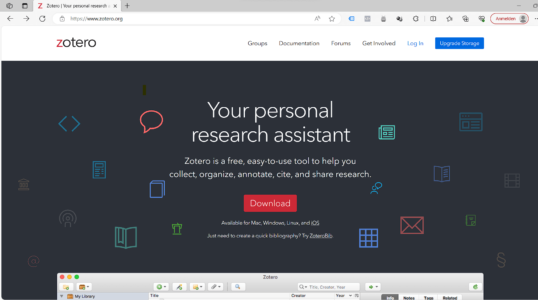
To use Zotero, you must first download and installZotero. Visit the official Zoterowebsite, download the application and install it on your computer. Zotero is available for Windows, Mac and Linux alike.
Step 2: Setting up your account
After the installation create a Zotero-account . This allows you to share your literature data between your different devices like with a tablet or mobile but also safely store your library. Please do not skip this step!
Zotero offers a browser extension for Chrome, Firefox and Safari. Download this extension to import your sources directly from the internet to your library.
Step 3: The Zotero browser extension
Zotero automatically recognises the metadatawhile you surf the internet. Do you need an article from JSTOR or a preprint from arXiv.org? An article from the New York Times or a book from the National Library? Zotero is your companion, wherever you go.
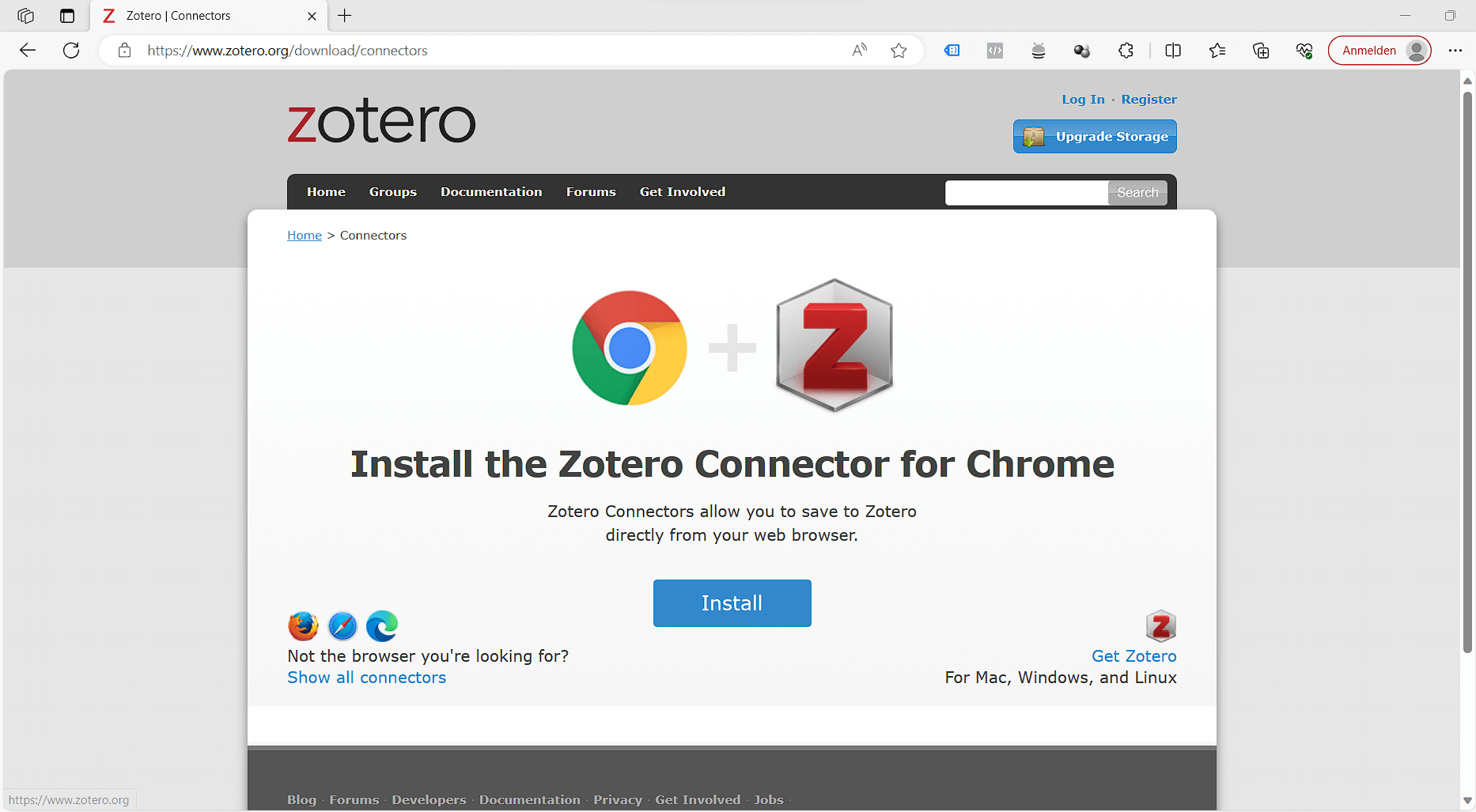
Simply open the following page and click on "Install": Zotero Connector (available for all common browsers)
Step 4: Add your literature sources
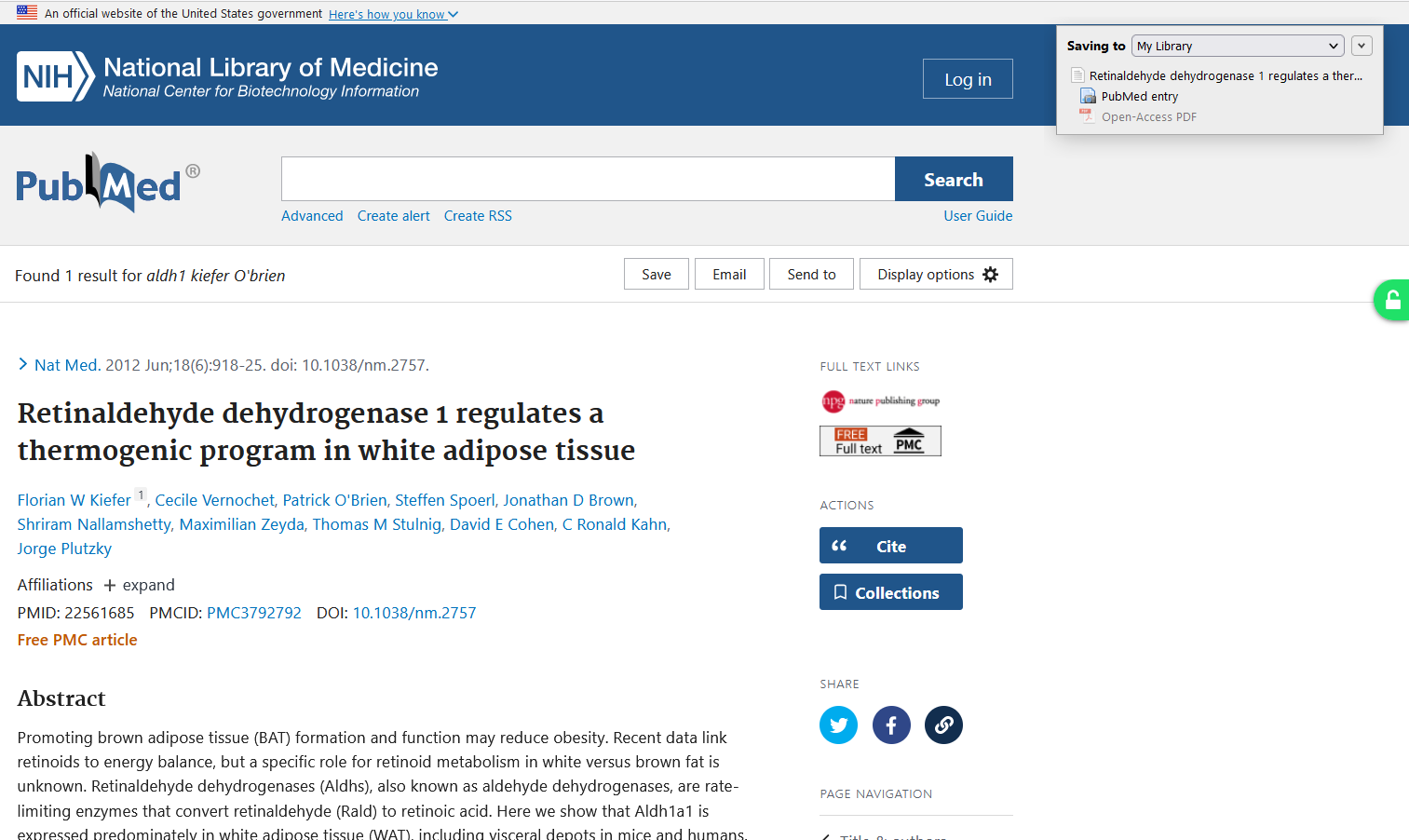
Once you have installed the extension, you can easily import literature sources from websites, online libraries and catalogues. Your sources are automatically organised in your Zotero- library after import. See in the below picture in the top right corner, Zotero automatically detects the item type and you can select the collection in which you want to save the item.
To make this even easier for you, I’m providing the following public library that will guide you onhow to enter your metadata correctly, in order to have footnotes and bibliography render correctly. https://www.zotero.org/groups/2583327/fom_zitierbeispiele/library
Step 5: Install Word Processor Integration
Zotero creates citations in your text or footnotes and bibliographies for any text editor, directly in Word, LibreOffice or Google Docs. This integration is automatically installed for you when you install Zotero, regardless of whether you use Word or another supported programme. You will find a new tab called Zotero in the menu.
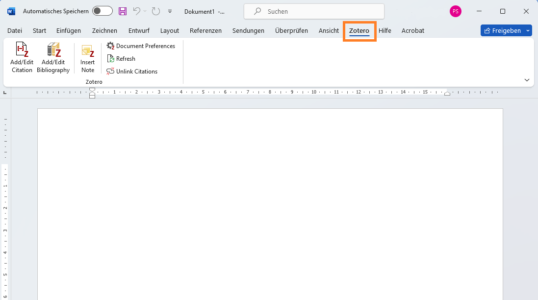
If this tab does not appear, you can reinstall the extension. To do this, simply scroll down in Zotero's settings under "Citation" and under "Word processing programs" you can click on "Reinstall Microsoft Word Add-on". See also: https://www.zotero.org/support/word_processor_plugin_installation
Step 6: Installing the right citation style
Supporting over 10,000 citation styles, you can format your work to match any style manual or publication. For some universities FOM I also offer custom citation styles. Over the years I've put a lot of put a lot of effort into perfectly matching them with the respective guidelines.
I have developed bespoke citation styles that perfectly comply with your university's requirements:
- Citation style for FOM (common/generic)
- Citation style for FOM – ING & IT Management
- Citation style for FOM – Law
- Citation style for FOM – Business Psychology
- Citation style for FOM – Business Psychology (Prof. Schiefer)
Once you have purchased the style, you will receive a licence to install the style(s) in Zotero. You can also use the following guide "Citation Styler Client Sync – Setup & Use" .
Step 7: Create citations
You can then start working on your document right away!
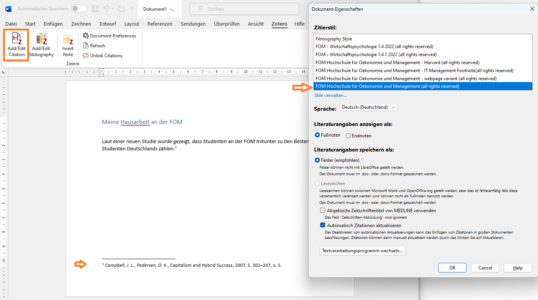
Simply click on "Add/edit Citation" and you will be asked which style you want to select. Then select your source and your footnote/citation will be generated.
You can then add the bibliography at the end. To do this, simply position the cursor and click on the ‘Add/Edit Bibliography’ button. It's as simple as that.
Summary
The combination of Zotero and my specially tailored-made FOM citation styles will significantly improve your academic life. Literature research and citing will become a stress-free process, so you can concentrate on what matters most – your research and your thesis/paper.
Use these resources wisely and let Zotero and our customised citation styles help you write outstanding academic papers.
Good luck with your studies and your scientific work! If you have any questions don't hesitate to contact me.